
CS2 Has No FOV Slider. Here’s What Actually Controls Your View.
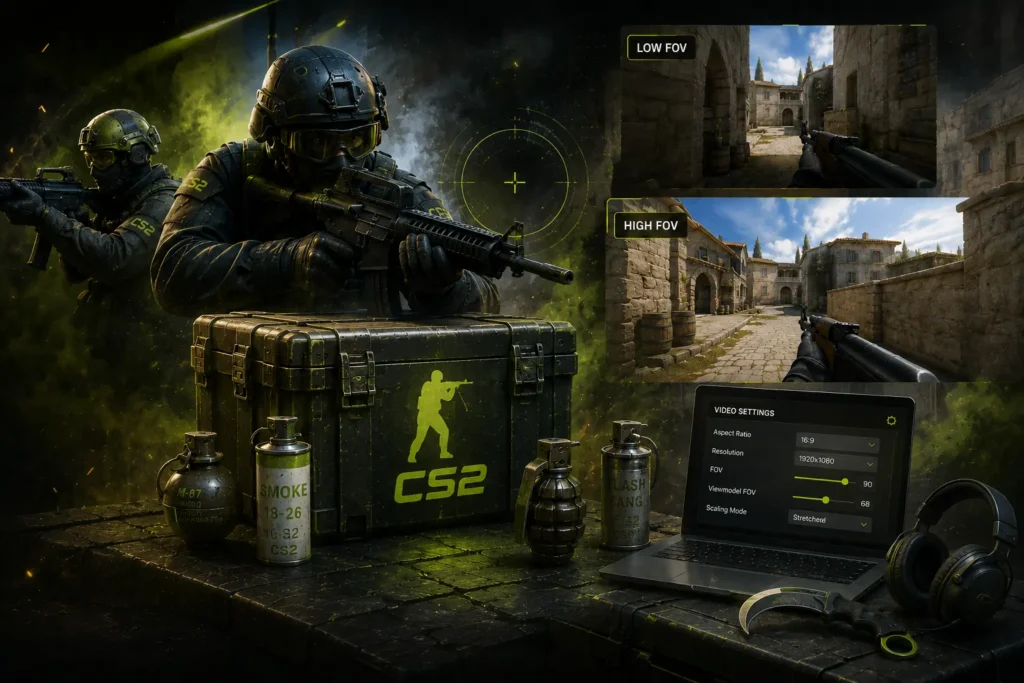
Counter-Strike 2 has no traditional FOV slider. Your visible field of view is shaped by viewmodel settings, aspect ratio, and resolution scaling. Simulate, compare, and optimize your CS2 visual setup for sharper aim and better awareness.
54–90
Viewmodel
FOV Range
4:3→16:9
Aspect Ratio Conversion
Pro
Competitive Optimization
– CALCULATOR
CS2 FOV Calculator
Enter your FOV, select current and target aspect ratios, then hit Calculate for instant accurate conversion.
– Visual Explainer
CS2 FOV: What You Can & Cannot Control
CS2’s world FOV is hardcoded at 106.26° horizontal on 16:9. Only the viewmodel layer — your weapon’s projection — is adjustable. This diagram shows exactly what changes and what doesn’t.
– Why It Matters
Why FOV Matters in CS2
CS2 gameplay is precision-first. Unlike battle royale titles, FOV changes here are subtle but have outsized impact on feel, timing, and muscle memory.
Crosshair Placement
Viewmodel FOV determines how much of your weapon obscures center screen, directly affecting pre-aim precision.
Reaction Time
Enemy model size on screen is influenced by your aspect ratio and stretch settings — wider models = faster reactions.
Spray Control
Lower viewmodel FOV reduces weapon visual clutter around crosshair, making spray patterns easier to observe & correct.
Entry Fragging
Wider viewmodel FOV aids in reading angles faster, giving entry fraggers a marginal situational advantage.
AWP Flick Shots
AWPers often prefer lower FOV setups to minimize visual noise during high-stakes long-range flicks.
Strafe Tracking
Perceived enemy speed on screen changes with your FOV & resolution, altering how you track moving targets.
– Getting Started
How to Use the Calculator
Four steps to dial in your CS2 visual setup.
01
Select Viewmodel FOV
Enter your current CS2 viewmodel_fov value. Default is 68; competitive range is 54–75.
02
Choose Aspect Ratio
Choose your aspect ratio — 4:3 Stretched is the top pro choice, while 16:9 is the standard default.
03
Pick Resolution Style
Stretched renders 4:3 resolution full-screen, widening enemy models. Black bars keeps them proportional.
04
Compare & Copy
Review your visibility impact scores, then copy your optimized config directly to your CS2 autoexec.
– Reference
CS2 FOV Reference Table
Quick lookup for viewmodel FOV values by playstyle and competitive level.
| Viewmodel FOV | Playstyle | Recommendation |
|---|---|---|
| 54–60 | Tight View | Pro / Old School |
| 61–68Most Used | Balanced | Most Competitive Players |
| 69–75 | Wide View | Entry Fraggers |
| 76–80 | Very Wide | Casual + Visibility |
| 81–90 | Maximum | Fun / High Awareness |
* CS2 pros mostly stay between 60–68 viewmodel FOV.
– Technical
The Math Behind the Calculator
CS2 uses a Source 2 viewmodel projection system — not a true world FOV slider. Here’s how the numbers actually work.
Aspect Ratio Scaling
Effective Width = Base View × (Screen Width / Screen Height)
/ / Applied after viewmodel FOV is set
Perceived FOV Impact
Perceived FOV ≈ Viewmodel FOV × Aspect Ratio Multiplier × Resolution Stretch Factor
/ / Stretch Factor: 1.0 = native or black bars | 1.333 = 4:3 stretched to 16:9
Viewmodel FOV
Weapon positioning field — controls how close/wide the gun appears on screen.
Aspect Ratio
Screen geometry — 4:3 compresses horizontally, 16:9 is proportional, 21:9 extends peripheral.
Stretch Factor
Horizontal compression applied when rendering 4:3 content on a 16:9 panel — widens models.
EXAMPLE — 68 Viewmodel FOV: 4:3 Stretched vs 16:9 Native
On 4:3 stretched: enemy models appear wider (stretch factor ~1.33×), giving a larger effective target. Many players find this easier to track and click.
On 16:9 native: proportions are accurate, peripheral coverage is wider, but enemy models are narrower — demanding higher precision.
– Pre sets
Best CS2 FOV Settings
Recommended configuration presets based on playstyle and competitive tier.
60–64
Ultra Competitive
Used by many pro players and top-ranked players. Maximum screen clarity, minimal weapon intrusion.
Pro Meta
68
Competitive Sweet Spot
Default competitive sweet spot. Balanced visibility and aim precision — ideal for most players.
Recommended
70–75
Wide View
Slightly wider perspective. Better awareness for entry fraggers and aggressive players who push angles.
Entry Fragger
80+
Casual / Experimental
Maximum weapon visibility and peripheral weapon awareness. Not common in pro or high-ranked play.
Casual
– PRO Guide
What CS2 Pros Actually Use
Most CS2 professionals standardize on a narrow band of settings that optimize muscle memory, consistency, and target acquisition.
VIEWMODEL FOV
60–68
ASPECT RATIO
4:3
TOP RESOLUTION
1280×960
Reasons pros choose this setup: easier target tracking at stretched models, larger perceived enemy hitboxes, stronger muscle memory consistency, and cleaner center-screen focus with no peripheral distraction.
Benefits of Lower Viewmodel FOV
- Cleaner screen space around crosshair
- Better crosshair focus and less weapon clutter
- Easier recoil pattern tracking
- More disciplined aim feel for riflers
- Preferred by AWPers for flick clarity
Benefits of Higher Viewmodel FOV
- More weapon visible on screen for reference
- Better peripheral weapon awareness during strafes
- Slight clarity boost for entry angle reading
- More natural feel for players coming from other FPS titles
- Can aid situational awareness in clutch scenarios
– Aspect Ratio
CS2 Aspect Ratio & Stretched FOV
Your aspect ratio choice fundamentally changes how enemies appear on screen — and it’s one of the biggest variables in how your FOV actually feels.
4:3
Stretched
Wider enemy models (easier to click)
Standard pro competitive setup
Better muscle memory for tracking
–
Less peripheral coverage
–
Distorted HUD proportions
16:9
Native
Accurate visual proportions
Wider field of view coverage
Modern standard for new players
–
Narrower enemy models
–
Slightly lower click-through feel
21:9
Ultrawide
Maximum peripheral visibility
Immersive presentation
–
Not permitted in official competitive
–
Less common pro usage
–
Potential FPS performance cost
– Hardware
Best CS2 FOV by Monitor
Physical screen size affects perceived FOV and eye strain. Here are starting points for each common setup.
24″
1080p · Most Common Pro
60–68 Viewmodel
27″
1440p · High Fidelity
64–70 Viewmodel
32″
1440p / 4K · Large Format
65–72 Viewmodel
UW
Ultrawide · Non-competitive
70–80 Viewmodel
– Playstyle
FOV by Playstyle
Different roles in CS2 benefit from slightly different viewmodel FOV ranges. Use this as a starting point, then adjust based on feel.
ROLE
Aggressive Entry Fragger
65–75
ROLE
RifleR
60–68
ROLE
AWPer
58–65
ROLE
Support Player
60–68
– Comparison
CS2 vs Other FPS Games
Every FPS handles FOV differently. Understanding CS2’s approach helps explain why settings you use elsewhere won’t transfer directly.
| Game | FOV System | Typical Range |
|---|---|---|
| CS2 | Viewmodel + Aspect Ratio (no world slider) | 54–90 viewmodel |
| Valorant | Fixed FOV (106° locked) | Fixed 106° |
| Warzone | Adjustable FOV slider | 60°–120° |
| Apex Legends | Adjustable FOV slider | 70°–110° |
| Battlefield | Full FOV slider | 55°–120° |
– Deep Dive
Understanding CS2 FOV: A Complete Guide
What FOV Means in the CS2 Engine
Counter-Strike 2 runs on Valve’s Source 2 engine, and unlike many modern shooters, it does not expose a traditional horizontal field of view slider to players. When people talk about “CS2 FOV,” they’re typically referring to the viewmodel_fov console variable — a setting that controls how the weapon model is projected onto the screen, not the world itself.
This distinction matters. In Warzone or Apex Legends, changing FOV literally widens the camera lens, compressing more of the game world into the same viewport. In CS2, the world geometry stays fixed. What changes with viewmodel_fov is primarily how your weapon and hand model sit on the screen, and by extension, how much of the center of the screen it obscures. The world-level perception change comes primarily from your aspect ratio and resolution choices.
The Viewmodel System Explained
The viewmodel is the first-person weapon and arm model rendered in front of the world. In CS2, you can adjust several viewmodel variables:
- viewmodel_fov: The primary FOV variable. Higher values move the weapon further from the camera lens, making it appear smaller and revealing more of the screen center. Range is 54–90.
- viewmodel_offset_x/y/z: Controls the weapon’s position relative to the screen. These are secondary refinements, not primary FOV adjustments.
- cl_righthand: Switches the weapon from right to left side. Does not affect FOV but influences screen-space perception.
The reason pros care so much about viewmodel_fov is that it directly influences how much of the crosshair region is visible around the weapon. A tight viewmodel (60–64) keeps the gun closer to the edge of the screen; a wide viewmodel (75+) shrinks the weapon appearance but can create a subtle sense of speed and awareness.
Aspect Ratio Scaling Mechanics
Here’s where things get genuinely interesting. Your aspect ratio doesn’t just change the shape of the image — it changes how enemy models appear relative to your crosshair. The core principle:
When you render CS2 at 4:3 on a 16:9 monitor in stretched mode, the image is horizontally expanded to fill the screen. This makes everything in the game world appear wider — including enemy player models. A player model that takes up, say, 40 pixels of horizontal space at 16:9 native might take up 53 pixels in 4:3 stretched, making them easier to click through.
This is why 4:3 stretched has remained the dominant professional setup for over two decades across both CS:GO and CS2. The wider model perception translates to marginally better aim feel for a large portion of players — not because it changes accuracy, but because a larger visual target is psychologically easier to commit to shooting.
Why Pros Use Low Viewmodel FOV
Professional players have largely converged on 60–68 viewmodel FOV for several reasons that compound over thousands of hours of competitive play:
- Cleaner screen center with less weapon clutter during spray and peek sequences
- More predictable recoil visual feedback — spray patterns appear slightly larger and more readable
- Established muscle memory from years of play at these settings
- Tournament and league standardization — many team environments standardize setups for consistency
- Lower visual noise during high-stress AWP duels where every pixel of crosshair placement matters
The Stretched vs Native Debate
This debate has evolved significantly in CS2 compared to CS:GO. The arguments are genuinely balanced:
Case for 4:3 stretched
Wider enemy hitboxes, established muscle memory for veteran CS players, slight reaction time advantage from larger targets, and psychological commitment clarity when clicking onto models. The most decorated pro players in the world still use this setup.
Case for 16:9 native
Wider peripheral vision (you can see more of the world on the horizontal axis), accurate model proportions that may help with precise headshot aim, more modern presentation that matches how CS2 was actually designed to look, and no FPS performance penalty from upscaling a lower-resolution image.
The honest answer is that neither is objectively superior — they represent different feel philosophies, and the right choice is whichever one you maintain the highest consistency with over time.
Monitor Size Impact on CS2 FOV
Physical screen size interacts with FOV in ways that many players overlook. A 24-inch 1080p monitor at a typical 60cm viewing distance produces a field of view that is noticeably different than the same resolution on a 32-inch panel at the same distance. Larger screens require higher viewmodel FOV values to achieve an equivalent perceived weapon size, because the game image is physically larger.
This is why ultrawide users tend to prefer higher viewmodel FOV settings — the screen physically encompasses more of their visual field, requiring adjustment to maintain comfortable weapon proportions and center-screen clarity.
Competitive Optimization Strategies
Optimizing for competitive CS2 play means treating your FOV setup as part of a holistic system, not an isolated variable. Consider these principles:
- Set viewmodel_fov first, then adjust offset values to fine-tune weapon position
- Choose aspect ratio second — commit to stretched or native before worrying about fine-tuning FOV
- Don’t change multiple variables at once — isolate each variable and spend at least 10–15 deathmatch sessions at each value before moving on
- Match your sensitivity to your FOV choice — switching between 4:3 and 16:9 requires a corresponding sensitivity adjustment if you want consistent cm/360 tracking
- Test in deathmatch, not in training mode — real-game conditions with movement and reaction are the only honest measure
Common Mistakes Players Make
- Copying a pro’s exact settings without accounting for their monitor size or viewing distance
- Switching between stretched and native repeatedly, which destroys muscle memory consistency
- Using maximum viewmodel FOV (90) expecting a dramatic awareness boost — the difference is subtle, and the screen clutter cost is real
- Ignoring viewmodel_offset values while obsessing over viewmodel_fov, when both contribute to the final feel
- Changing FOV settings the day before a tournament or ranked session rather than giving new settings time to settle
How to Find Your Perfect CS2 Setup
Start at 68 viewmodel_fov on your native resolution. Play 5–7 full deathmatch sessions and note what feels wrong: too much weapon in the way, crosshair placement feels off, spray is hard to read. Then adjust one variable by a small increment — try 64 or 72 — and repeat the process. Give each configuration at least a week before concluding anything. The settings that maximize your consistency over a month of play are always the right settings, regardless of what any calculator or pro recommendation suggests.
Muscle Memory and Why Stability Matters
CS2 is a game that rewards extreme consistency. The difference between a Global Elite and a Master Guardian is often not raw mechanical skill but accumulated, unconscious precision — the ability to pre-aim, spray, and flick without conscious thought. Your FOV configuration directly shapes the visual context in which all that muscle memory is built. Changing it resets months of accumulated visual calibration. The best FOV is the one you haven’t changed in six months.
– FAQ
Common questions
Everything you need to know about CS2 FOV settings and optimization.
CS2 uses a viewmodel-based FOV system rather than a traditional field-of-view slider. Your visual experience is shaped by the viewmodel_fov command, your chosen aspect ratio, and whether you render in stretched or native resolution. There is no single “FOV” number the way Warzone or Apex use one.
Most players settle on 60–68 viewmodel FOV. 68 is the most common starting point, offering a balance between weapon visibility and screen clarity. Lower values (60–64) are preferred by precision-focused riflers and AWPers; higher values (70–75) suit aggressive entry fraggers who want maximum situational awareness.
No — the vast majority of professional CS2 players use lower viewmodel FOV values in the 60–68 range. Higher FOV is uncommon at the pro level because it reduces crosshair clarity and can make recoil control feel less precise. Muscle memory and consistency matter more than a wide viewmodel.
It depends on preference. 4:3 stretched widens enemy models, which many players find easier to click through and track. 16:9 native gives accurate proportions and slightly wider peripheral coverage but narrower enemy targets. Most professional players still use 4:3 stretched (1280×960 being the most common), though 16:9 has grown in popularity at higher ranks.
Yes, indirectly. FOV changes how large enemy models appear on screen (perceived size), how fast they seem to move (tracking feel), and how much screen space your weapon takes up (crosshair clarity). None of these directly change your sensitivity or hit registration, but they significantly affect feel, consistency, and how quickly you acquire targets.
1280×960 stretched on a 16:9 monitor remains the single most common competitive resolution in professional CS2 play. It combines the widened model advantage of 4:3 stretch with a resolution high enough to maintain visual clarity. 1920×1080 native is the standard for players who prefer accurate proportions and modern presentation.
Low for precision, high for visibility — but most players land in the balanced 64–68 range. Start at 68, play several sessions, then experiment in increments of 2–4. The setting that produces the best aim consistency over time for you is always the right one, regardless of what pros use. Muscle memory adapts, but consistency matters more than the exact number.
– RELATED TOOL