Warzone FOV Calculator — Find Your Edge in Seconds
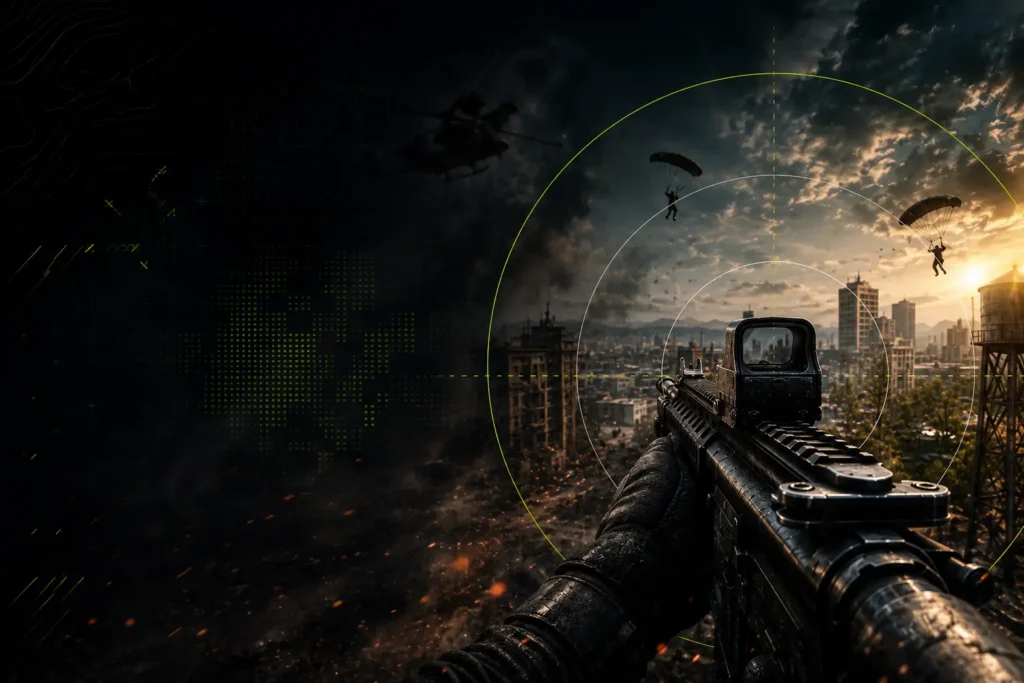
Field of View is one of the most important settings in Warzone. A wider FOV increases awareness and movement visibility, while a lower FOV makes enemies appear larger and easier to track. Use this calculator to compare settings, convert FOV values, and find the perfect balance for your monitor and playstyle.
60–120
FOV Range
120°
Maximum FOV
⚡
Competitive · Player Optimized
– CALCULATOR
Warzone Field of View Calculator
Enter your FOV, select current and target aspect ratios, then hit Calculate for instant accurate conversion.
⚙ WARZONE FOV CALCULATOR
– Why It Matters
Why FOV Matters in Warzone
Warzone features large maps, long sightlines, fast movement, and frequent close-range engagements. Your FOV setting directly affects peripheral vision, target size, movement visibility, recoil perception, and aim consistency. Finding the right value can significantly improve your gameplay.
– Getting Started
How To Use This Calculator
Four simple steps to optimize your Warzone field of view
01
Enter Current FOV
Type in your current Warzone FOV value (between 60 and 120).
02
Select Aspect Ratio
Choose your current and target aspect ratios from the dropdowns.
03
Choose Target & Monitor
Set your target FOV and optionally select your monitor size for a tailored recommendation.
04
Compare & Copy
Review your results, compare FOV values, and copy your optimized settings directly to clipboard.
– Reference
Warzone FOV Reference Table
Preference depends on monitor size and viewing distance. Use this as a starting point.
– Technical
How Warzone FOV Conversion Works
Warzone uses a horizontal field of view system. The following formulas drive our calculator.
VFOV Formula
VFOV = 2 × atan(
tan(HFOV ÷ 2) ÷ Aspect Ratio
)
HFOV Formula
HFOV = 2 × atan(
tan(VFOV ÷ 2) × Aspect Ratio
)
HFOV = Horizontal Field of View (the value you set in-game). VFOV = Vertical Field of View (calculated from HFOV). Aspect Ratio = monitor width divided by height (e.g. 16÷9 = 1.778). atan = arctangent function. tan = tangent function. All angle values are in degrees, converted to radians for the calculation.
Worked Example: 100 FOV on 16:9
Starting with HFOV = 100° on a 16:9 display (aspect ratio = 1.778):
Step 1 — Convert 100° to radians: 1.745 rad
Step 2 — Halve it: 0.8727 rad
Step 3 — Calculate tan(0.8727) = 1.1918
Step 4 — Divide by aspect ratio: 1.1918 ÷ 1.778 = 0.6703
Step 5 — atan(0.6703) = 0.5915 rad × 2 = 1.183 rad
Step 6 — Convert back: 1.183 × 180 ÷ π = 67.8° VFOV
– Pre sets
Best Warzone FOV Settings
Recommended configuration presets based on playstyle and competitive tier.
90
FOV
Larger enemies on screen. Easier target acquisition. Good for beginners learning Warzone mechanics.
100
Most Popular
Balanced option. The most commonly recommended setting across all skill levels and monitor sizes.
105
Competitive Sweet Spot
Excellent awareness without making enemies too small. Favored by competitive and ranked players.
120
Maximum Awareness
Best for experienced players and ultrawide monitors. Maximum peripheral vision, smallest enemy models.
– PRO Guide
What FOV Do Warzone Pros Use?
Most professional Warzone players run FOV values between 100 and 120, with the majority landing in the 105–110 range. This provides maximum situational awareness while keeping enemy models at a workable size for precision shots.
✓ Benefits of Higher FOV
- More peripheral awareness
- Better tracking during movement
- Improved situational awareness
- Easier enemy spotting while rotating
✗ Drawbacks of Higher FOV
- Smaller enemy models at range
- Harder long-range engagements
- More visual clutter on screen
- Can overwhelm newer players
⚡ Pro Recommendation
Most players perform best between 100 and 110 FOV. This range offers the ideal balance of spatial awareness and target visibility across Warzone’s varied engagement distances.
– Gameplay Mechanics
Does FOV Affect Aim Assist in Warzone?
This is one of the most nuanced aspects of FOV configuration in Warzone, particularly for controller players.
Independent ADS FOV
When set to Independent, your ADS (Aim Down Sights) FOV stays fixed regardless of your base FOV setting. This means aiming in feels the same no matter what your hipfire FOV is configured to. The benefit is consistency — your scoped gameplay feels identical whether you’re running 90 or 120 FOV. However, aim assist strength can feel slightly weakened because the engine isn’t scaling it relative to the wider base FOV. Most controller players prefer Independent ADS FOV to maintain predictable, muscle-memory-friendly aiming behaviour.
Affected ADS FOV
When set to Affected, your ADS FOV scales in proportion to your base FOV. Running a higher base FOV means your ADS view is also wider, giving you better awareness even while scoped. The downside is that aim assist feels subjectively weaker because enemy hitboxes appear smaller relative to your screen space. Visual recoil also appears reduced with Affected ADS FOV, which some players find helpful for managing sustained fire — but others find it disorienting.
Which Should You Use?
Controller players generally benefit from Independent ADS FOV because aim assist remains strong and consistent. Keyboard and mouse players can experiment with Affected ADS FOV since they don’t rely on aim assist and may prefer the wider scoped awareness. If you’re playing ranked or competitive modes, Independent is the more reliable choice for consistent performance.
– Performance Impact
Does Higher FOV Reduce FPS?
Yes — a wider FOV forces the game to render more of the world, increasing GPU load. Here’s what to expect.
80–100 FOV
Lowest Performance Impact
Best choice for low-end PCs. Minimal rendering overhead. Stable frame rates on older hardware and integrated graphics.
100–110 FOV
Moderate Impact
Suitable for mid-range PCs (RTX 3060 / RX 6600 class). A small FPS dip is expected but manageable at 1080p and 1440p.
110–120 FOV
Highest Rendering Load
Best reserved for high-end PCs (RTX 4070+ / RX 7800 XT+). Expect a 5–15% FPS reduction versus lower FOV values.
– Monitor Setup Guide
Best Warzone FOV for Every Monitor
Your screen size changes everything — find the FOV range built for your exact setup.
24-inch 1080p
95–105
Recommended FOV Range
27-inch 1440p
100–110
Recommended FOV Range
32-inch Monitor
95–105
Recommended FOV Range
Ultrawide Monitor
110–120
Recommended FOV Range
– Playstyle FOV Guide
FOV Warzone Playstyle
Your weapon choice and game style should drive your FOV — not just personal preference.
⚡ Aggressive SMG
105–120
Maximum awareness for close-range and rotational play. Higher FOV helps track fast-moving targets.
🎯 Snipers
90–105
Lower FOV makes targets appear larger, improving precision at extreme distances.
🔀 Hybrid Players
100–110
Best all-round range for players who mix assault rifles, SMGs, and marksman rifles.
🎮 Casual Players
90–100
More comfortable, less overwhelming. Bigger enemies are easier to spot and track.
– Comparison
Warzone vs Other FPS Games
See how Warzone’s FOV range compares to other popular FPS titles.
– Deep Dive
Complete Warzone FOV Guide
What FOV Means in Warzone
Field of View in Warzone defines how wide a portion of the game world is visible on your screen at any given moment. Measured in degrees, a low FOV narrows your vision like looking through a telescope, while a high FOV opens up the scene like a wide-angle camera lens. Warzone measures FOV horizontally, meaning the number you see in settings represents the angle of view from the left edge of your screen to the right edge. This is important when converting between games that use vertical FOV systems, like Valorant.
Best Warzone FOV Settings
The most widely recommended Warzone FOV setting is 100–110, which provides a strong balance of awareness and target visibility. Beginners should start at 90–100 where enemies are larger and easier to engage. Experienced players who prioritize rotation speed and peripheral awareness will benefit from 105–120. Ultrawide monitor players should lean toward the upper end of the range since their screen already provides extra horizontal real estate, making the higher FOV feel natural rather than disorienting.
Warzone FOV and Aim Assist
Aim assist in Warzone operates within a radius on screen. When your FOV is higher, enemies appear smaller on screen, and the effective radius of aim assist doesn’t scale up proportionally. This means a controller player running 120 FOV may feel like aim assist has been reduced compared to 100 FOV, even if the underlying values haven’t changed. The ADS FOV setting compounds this: Affected mode scales your scoped view with your base FOV, which can further dilute aim assist feel. Most high-level controller players use Independent ADS FOV and a base FOV of 100–110 to keep aim mechanics predictable.
ADS FOV Explained
Warzone offers two ADS FOV modes in the settings menu. Independent ADS FOV keeps your zoomed-in view constant regardless of your hipfire FOV. Affected ADS FOV scales your ADS view proportionally to your base FOV setting. For newer players or those on controller, Independent is the recommended starting point. It keeps your scoped gameplay consistent and your aim muscle memory transferable between sessions. Affected ADS can be useful for mouse players who want a wider view even while aiming, or those who find the reduced visual recoil effect beneficial.
Performance Considerations
Every FOV increase adds rendering overhead because the GPU must process more of the game world per frame. On low-end systems with GPUs below the RTX 3060 tier, keeping FOV at or below 100 can meaningfully stabilize frame rates. Mid-range systems can comfortably run 100–110 at 1080p or 1440p. High-end systems with powerful GPUs will barely notice the difference across the full FOV range. If you’re experiencing frame drops, reducing FOV by 5–10 points is often one of the quickest performance improvements you can make without sacrificing visual quality.
Common FOV Mistakes
The most common mistake is jumping straight to 120 FOV because it sounds better. If you’ve been playing at 80–90 FOV for years, a sudden switch to 120 will feel disorientating and your aim will suffer until you adapt — which can take weeks. Instead, increase FOV in 5-point increments and give yourself several play sessions at each step. Another frequent mistake is ignoring the interaction between FOV and monitor size: 120 FOV on a 24-inch monitor creates a fish-eye effect that’s visually uncomfortable during long sessions. Match your FOV to your physical setup using the monitor recommendations in this guide.
How to Find Your Perfect Warzone FOV
Start with 100 FOV as your baseline. Play five to ten full matches and assess your performance. If you’re frequently caught off-guard by enemies in your peripheral zone, increase to 105. If your long-range accuracy feels imprecise or enemies look too small, drop back to 95–100. Also factor in your primary weapon: sniper and marksman rifle players often prefer lower FOV for cleaner target acquisition, while SMG and shotgun players benefit from higher FOV for rotational awareness. Use the calculator at the top of this page to convert your settings between different aspect ratios if you switch monitors or play on multiple setups.
– FAQ
Common questions
Everything you need to know about Warzone FOV settings and optimization.
Most players prefer a Warzone FOV between 100 and 110. This range provides excellent situational awareness without making enemy models too small for precise targeting. Start at 100 and increase by 5 until you find your comfort zone.
120 FOV provides the maximum field of awareness in Warzone, helping you spot threats and rotating enemies faster. The tradeoff is that enemy models appear smaller, making long-range engagements slightly harder. It’s best suited for experienced players and ultrawide monitor users.
FOV does not directly change the aim assist algorithm, but it affects how aim assist feels in practice. Higher FOV makes targets appear smaller on screen, which can make aim assist seem weaker. The ADS FOV setting (Independent vs Affected) also plays a significant role — see the Aim Assist section above for a full breakdown.
Most professional Warzone players run between 100 and 120 FOV, with the majority clustering around 105–110. This sweet spot maximizes awareness for rotational plays and close-range engagements while keeping enemies trackable at medium range.
Yes. A higher FOV forces Warzone to render more of the game world each frame, increasing GPU workload. Expect a 5–15% FPS reduction when moving from 80 to 120 FOV. On mid-range hardware, sticking to 100–110 FOV offers the best performance-to-awareness ratio.
It depends on your monitor, playstyle, and hardware. On a 24-inch 1080p monitor, 100 FOV is often the better choice because enemy models remain a workable size. On a 27-inch 1440p or ultrawide setup, 110–120 can be superior. Use the calculator above to find your ideal value.
Use Independent ADS FOV if you play on controller — it keeps aim assist consistent and your ADS mechanics predictable regardless of your base FOV. Use Affected ADS FOV if you play on keyboard and mouse and want wider awareness while aiming, or if you prefer reduced visual recoil. Both are valid; the best choice depends on your input method and aiming style.
– RELATED TOOL