PUBG FOV Calculator
Optimize Visibility, Awareness & Combat Performance
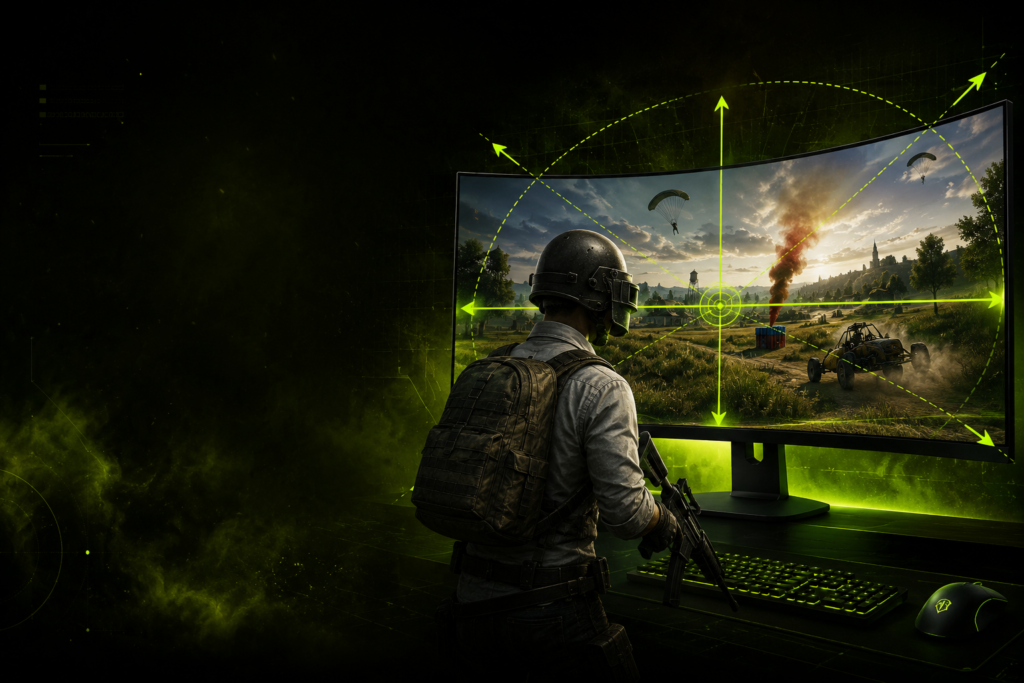
Every degree of FOV matters in PUBG. A wider field of view helps you spot enemies earlier, monitor flanks, and maintain awareness during vehicle rotations and compound fights. Our PUBG FOV Calculator helps players find the ideal balance between visibility and target size, making it easier to optimize settings for ranked matches, esports competition, and casual battle royale sessions.
70–103°
FPP Adjustable FOV
Long-Range Fights
Enhanced Visibility
Competitive
Player Optimized
– CALCULATOR
PUBG FOV Calculator
Enter your current FOV, select your resolution or aspect ratio, and get your optimized PUBG field of view instantly.
Set your FOV, pick an aspect ratio or enter resolution — then hit Calculate.
– FOV Comparison
PUBG FOV Visual Comparison
See exactly how different FOV values change your peripheral vision and enemy size perception in PUBG. Drag the slider to compare.
– How It Works
How PUBG FOV Works
PUBG’s FOV slider controls your horizontal field of view in first-person perspective (FPP). Unlike Valorant — which locks FOV — PUBG gives you full control from 70 to 103, letting you tune the balance between situational awareness and target visibility based on your playstyle.
FOV in PUBG affects four critical gameplay factors: how much of the environment fits on screen, how large enemies appear at distance, how easily you track moving vehicles, and how quickly you spot flanking opponents. Getting it right is one of the highest-leverage settings adjustments you can make.
Higher FOV (95–103)
- Pros: More surrounding vision, better close-range awareness, easier vehicle spotting
- Cons: Enemies appear smaller at long range, harder to land shots at 200m+
- Best for: Aggressive entry fraggers, squad play, urban combat
Lower FOV (70–85)
- Pros: Larger enemy models, easier long-range target acquisition, better scoped accuracy
- Cons: Reduced peripheral vision, flanks harder to detect, vehicles appear late
- Best for: Long-range snipers, passive playstyles, final circle camping
– Pro Settings
PUBG FOV Settings by Playstyle
– TPP vs FPP
PUBG TPP vs FPP FOV — What’s the Difference?
PUBG’s FOV slider only affects First-Person Perspective (FPP). Third-Person Perspective (TPP) uses a fixed camera — there’s no TPP FOV slider in the settings menu, and no in-game setting changes it. That’s a common point of confusion, since the game’s two camera systems aren’t obviously separated in the UI.
Key insight: Set your FPP FOV to whatever suits your playstyle — 103 is the common competitive choice for maximum combat awareness. TPP doesn’t have an equivalent setting to tune; its camera is fixed by design, regardless of what your FPP FOV is set to. Switching between modes only changes what you see, not what you can adjust.
– How to Change
How to Change FOV in PUBG
PUBG buries its FOV settings slightly — here’s the exact path to find them on PC and console.
PC — Step by Step
- Launch PUBG and reach the main lobby
- Click the Settings gear icon (top right)
- Go to the Gameplay tab
- Scroll to the Camera section
- Find FPP Camera FOV — drag slider or type value (70–103)
- There’s no separate TPP FOV control — third-person’s camera isn’t adjustable
- Click Apply — takes effect immediately in-match
Console (Xbox / PS5)
- Press Menu / Options button in lobby
- Navigate to Settings → Gameplay
- Scroll to Camera section
- FOV slider available for FPP: range is 70–103
- Console PUBG’s TPP camera is fixed, same as PC — no separate slider
- Changes apply on next match load
– Reference Data
PUBG FOV Reference Table — HFOV & VFOV by Aspect Ratio
PUBG’s FOV slider sets horizontal FOV. The vertical FOV is derived from your aspect ratio. Use this table to find your exact VFOV at any common FOV setting.
★ Maximum FOV in PUBG. VFOV = 2 × atan(tan(HFOV ÷ 2) ÷ Aspect Ratio). Values rounded to 2 decimal places.
– Scoped FOV
PUBG Scoped FOV & Zoom Sensitivity
Your base FOV setting does not directly control what you see through a scope — PUBG handles scoped view with fixed zoom magnifications. However, your FOV setting affects the transition feel when you ADS, and critically interacts with your scope sensitivity scaling.
The important takeaway: your base FOV setting matters for hip-fire, 1× optics, and overall movement feel. Once you zoom into a magnified scope, the base FOV is irrelevant — the scope’s fixed zoom level takes over. Set your per-scope sensitivities separately under Settings → Sensitivity → Scope Sensitivity.
– Sensitivity Interaction
How FOV Affects Your Sensitivity in PUBG
Changing FOV changes how your mouse sensitivity feels — even if you don’t touch the sensitivity slider. This trips up many players when they increase FOV for the first time.
Higher FOV = Faster Feeling Aim
At 103 FOV, your crosshair covers more angular degrees per centimetre of mouse movement than at 80 FOV. The same physical mouse movement sweeps a larger arc of the game world. Your aim will feel “faster” & potentially twitchy if you increase FOV without adjusting sensitivity.
What to Do When You Change FOV
When increasing FOV from e.g. 80 to 103, reduce your General Sensitivity slightly until flicks feel the same as before. A rough guide: multiply your old sensitivity by (tan(old FOV/2) ÷ tan(new FOV/2)). Or simply lower it by 10–15% and fine-tune in training mode.
– Pro Player Data
PUBG Pro Player FOV Settings
These are publicly known FOV settings used by top-ranked and tournament PUBG players. The pattern is clear: nearly every elite player runs at or near the 103 cap.
Settings sourced from publicly available pro player configs and tournament streams. Settings may vary between patches and events.
– Map Strategy
FOV by PUBG Map — Does It Matter?
PUBG’s maps have dramatically different engagement distances and terrain. Your FOV choice has different implications depending on where you’re playing.
Erangel / Miramar
Open terrain, 200–400m fights
Long sight lines dominate. Many players slightly lower FOV (90–95) on these maps for cleaner long-range target visibility. 103 still works but distant enemies are smaller.
Sanhok
Dense jungle, 10–80m close fights
Close-quarters map. 103 FOV is strongly recommended — wider peripheral vision is critical when enemies can flank through dense vegetation at close range.
Vikendi / Deston
Mixed terrain, vehicle-heavy
Vehicle rotations are common. Higher FOV (95–103) helps significantly with driving awareness — spotting enemies while rotating is much easier with wider peripheral view.
In practice, most competitive players keep a single FOV setting across all maps rather than switching — consistency in muscle memory outweighs the marginal map-specific benefit. Pick 103 and stick with it.
– The Math
PUBG FOV Math Explained
PUBG uses a horizontal FOV system. The value you set in the options menu is your horizontal field of view. To find the corresponding vertical FOV — which stays consistent across resolutions of the same aspect ratio — the engine uses trigonometry.
VFOV = 2 × atan( tan(HFOV ÷ 2) ÷ Aspect Ratio )
— where Aspect Ratio = Width ÷ Height
HFOV
Horizontal Field of View — the setting you enter in PUBG options (70–103)
VFOV
Vertical Field of View — derived from HFOV and aspect ratio; stays consistent per ratio
AR
Aspect Ratio — Width ÷ Height (e.g. 1920 ÷ 1080 = 1.7778 for 16:9)
Worked Example: At PUBG FOV 90 on 16:9 — VFOV = 2 × atan(tan(45°) ÷ 1.7778) = 2 × atan(0.5625) = 58.74°. Switching to 21:9 to preserve the same vertical view requires HFOV = 2 × atan(tan(29.37°) × 2.3333) = 105.33° — but PUBG caps at 103, so you’d set 103.
– Best Settings
Best PUBG FOV Settings by Setup
1080p Monitor
Recommended: 90–103°
Full resolution at 1080p gives you sharp enough rendering to use 103 without enemies becoming difficult to read. Start at 90 and push higher if you play aggressively.
Ultrawide 21:9
Recommended: 95–103°
Ultrawide already delivers more horizontal coverage. Running 103 FOV on 21:9 is the widest possible view in PUBG — outstanding for vehicle awareness and squad spotting.
Low-End PC
Recommended: 90–95°
Higher FOV renders more geometry per frame. If your PC struggles at target framerate, 90 is a solid compromise — enough awareness without heavy rendering cost.
Competitive FPS
Recommended: 103°
If you’re pushing for leaderboard rank or tournament play, 103 is the maximum legal setting and gives you the largest possible battlefield awareness. No reason not to run it on capable hardware.
– FAQ
PUBG FOV — Common Questions
Everything you need to know about PUBG field of view settings, optimization, and competitive play.
For most competitive players, 103 FOV is the best PUBG FOV setting. It gives you the maximum available peripheral vision within the game’s cap, helping with close-range fights, vehicle awareness, and spotting flanking enemies. Aggressive players should default to 103. More passive, long-range players may prefer 85–95 to make distant targets appear larger.
Higher FOV improves awareness but can make aim harder at distance. Enemies appear smaller on screen when FOV is wider — at 103, a target 200 meters away occupies fewer pixels than at 80 FOV. For close-range hip-fire and mid-range engagements under 100m, 103 is fine. For dedicated sniping beyond 200m, consider dropping to 85–90 to make targets appear larger and easier to track.
The majority of professional PUBG players run between 90 and 103 FOV. The most common competitive setting is 103 — the maximum — which provides the widest possible peripheral vision for squad calls, zone tracking, and close-range combat. Some long-range specialists prefer 90–95 for cleaner target acquisition at distance.
Yes, modestly. A wider FOV renders more of the game world each frame, increasing GPU and CPU load. In PUBG, moving from 70 to 103 FOV typically causes a 5–10% framerate reduction on mid-range hardware. On high-end systems this impact is negligible. If you’re struggling to hit your target framerate, reducing from 103 to 90 can recover some performance without meaningfully hurting awareness.
For most players, yes. 103 FOV is PUBG’s maximum and gives you the best situational awareness. The tradeoff is that enemies at 200m+ appear slightly smaller. If your PC has the framerates to support it and you play within 150m most of the time, 103 is the right choice. Only consider lower FOV if you primarily play as a long-range sniper or your PC can’t maintain smooth framerate.
The default PUBG FOV is 80 in first-person perspective (FPP). This is a balanced starting point but most experienced players increase it to 90–103 for better awareness. Third-person perspective (TPP) doesn’t have an adjustable FOV — its camera is fixed by design, so there’s no separate default to set.
PUBG Mobile does not have an FOV slider comparable to PUBG PC. Camera perspective and zoom in PUBG Mobile are handled through fixed third-person and first-person view modes, with no numeric FOV control available to the player. This calculator is designed for PUBG PC.
– RELATED TOOL