FOV Comparison Visualizer — Compare Any Two FOV Settings Side-by-Side
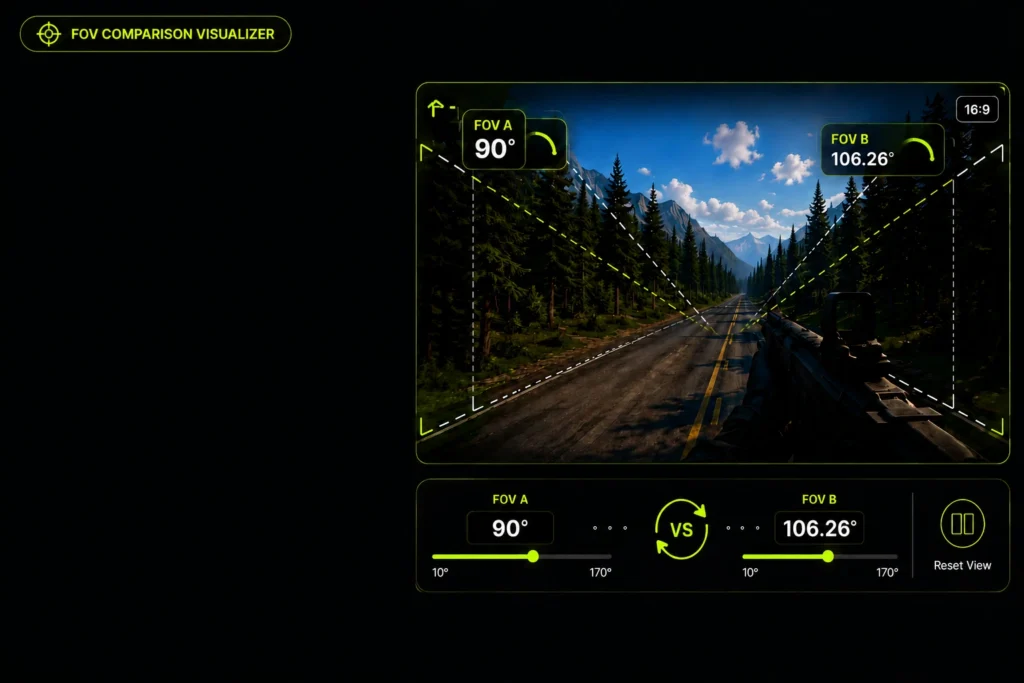
Compare two FOV settings side-by-side and see exactly how each value changes your perspective — in real time. No guesswork, no mental math. Just pick your values and see the difference instantly.
Side-by-side FOV visualization
Live canvas rendering
All games and aspect ratios supported
Instant wider/narrower comparison
– CALCULATOR
FOV Comparison Tool
– EDUCATIONAL
What Is the FOV Comparison Visualizer?
Field of View (FOV) is the angle of the game world your screen renders at any given moment. In competitive FPS games, your FOV directly determines how much of the battlefield you see — and how large or small enemies appear on screen.
The problem is that FOV numbers alone tell you very little. Seeing “90°” vs “110°” in a settings menu doesn’t make the difference feel real until you’ve played both. This tool closes that gap — it renders the actual angular cone of each setting so you can see the difference instantly, side by side, before you ever touch your in-game settings.
Why different games handle FOV differently
CS2 uses horizontal FOV and scales it with aspect ratio. Valorant locks vertical FOV at 103° — you can’t change it. Apex Legends uses a fixed horizontal slider that doesn’t scale automatically. Fortnite and Warzone each handle it differently again. The same number means completely different things across games, which is why visual comparison is so much more useful than raw values.
– Guide
How to Use the FOV Comparison Tool
01
Select your game preset
Choose from CS2, Valorant, Apex Legends, Fortnite, Warzone, or Custom for both Setting A and Setting B. The slider pre-fills with that game’s default FOV.
02
Set your first FOV value
Drag the green slider (Setting A) to your current in-game FOV. This is your baseline — the perspective you’re used to.
03
Set the comparison FOV
Drag the blue slider (Setting B) to the value you’re considering switching to, or to a different game’s equivalent.
04
Switch axis if needed
Toggle between Horizontal FOV and Vertical FOV depending on how your game reports it. Valorant and Battlefield 2042 use vertical; most others use horizontal.
05
Read the visual output
Both canvases render the actual angular cone for each FOV value. The wider arc = more of the world visible. The difference value shows you the exact gap between the two settings.
06
Choose your optimal setting
Use the visual difference to decide which FOV gives you the right balance of awareness and target clarity for your playstyle.
– The math
How FOV Comparison Works — The Math
FOV is measured in degrees — it’s the angle of the camera’s view cone. Your screen’s aspect ratio connects horizontal FOV and vertical FOV: change one, and the other changes too. The relationship is not linear — it’s trigonometric. That’s why you can’t just add or subtract percentages to compare settings.
H-FOV ↔ V-FOV conversion
V-FOV = 2 × arctan( tan(H-FOV ÷ 2) ÷ Aspect Ratio )
H-FOV = 2 × arctan( tan(V-FOV ÷ 2) × Aspect Ratio )
This tool applies that formula in real time. When you set a horizontal FOV of 90°, the vertical FOV on a 16:9 monitor is approximately 59°. At 110°, the vertical FOV jumps to approximately 74°. That’s a 15° vertical difference — enough to completely change where enemies appear on screen at head height.
Wider FOV vs narrower FOV — what actually changes
Wider FOV (e.g. 110°+)
More peripheral vision. Enemies at the edges of screen are visible sooner. Better situational awareness. But — targets appear smaller at all ranges, making precise long-range shots harder.
Narrower FOV (e.g. 70°–90°)
Zoomed-in view. Targets appear larger and clearer at range. Better for precision AWP/sniper play. But peripheral threats are harder to spot — and high sensitivity can feel jittery at lower FOV.
– COMPETITIVE ADVANTAGE
Why FOV Comparison Matters for Competitive Play
Aim consistency across games
Your aim is trained to a specific angular relationship between your crosshair and targets on screen. When you switch games and the FOV changes — even by 5° — targets appear at different sizes and positions. Your flicks overshoot. Your tracking drifts. Comparing FOV visually before switching games lets you find the equivalent setting that preserves your muscle memory.
Avoiding FOV shock
FOV shock is the disorientation you feel when switching between games with mismatched fields of view — like going from Valorant’s locked 103° H-FOV on 16:9 to CS2’s 90° and suddenly feeling claustrophobic, or the reverse where everything feels zoomed out and chaotic. Visual comparison before you play lets you prepare mentally and find matching equivalents.
Better target tracking
In Apex Legends, the difference between 90° and 110° horizontal FOV is significant — faster-moving targets at the same distance appear to move across a different portion of your screen. Players switching from CS2’s effective ~106° H-FOV on 16:9 to Apex at 90° will feel targets move slower and bigger. Knowing this in advance lets you adjust sensitivity and expectations before your first game.
– Use Cases
When to Compare FOV
Switching from Valorant to CS2
Valorant’s locked 103° H-FOV on 16:9 vs CS2’s effective ~106° on 16:9. The difference is small but real. Use the visualizer to confirm the gap before queuing.
Stretched vs native resolution
CS2 players running 4:3 stretched see a narrower horizontal FOV than 16:9 players. Visualize the difference to understand what you’re trading before committing to a resolution change.
Sniper vs aggressive playstyle
AWPers in CS2 often prefer lower FOV for larger target appearance at distance. Entry fraggers may prefer higher FOV for peripheral reads. Compare 80° vs 106° to feel the difference before changing settings mid-ranked.
Stretched vs native resolution
Switching from 16:9 to a 21:9 ultrawide? A 90° H-FOV on 16:9 is not the same as 90° on 21:9. Compare the two visually, then use our Aspect Ratio FOV Calculator to get the correct converted value.
– PRO TIPS
Getting the Most From FOV Comparison
- Don’t switch FOV constantly. Your aim calibrates to a specific visual field over time. Changing FOV resets that calibration. Pick a value, commit to it for at least a week, and only change if you have a specific reason.
- Test changes in an aim trainer first. Before changing your FOV in a ranked game, test the new setting in Aimlabs or KovaaK’s for 20–30 minutes. Your brain needs time to adapt — your first game on a new FOV will not be representative of your true skill level at that setting.
- Keep consistency across games. If you play CS2, Valorant, and Apex, use this visualizer to find equivalent FOV settings across all three. Your vertical FOV should ideally stay constant — use our FOV Calculator to find the correct horizontal values for each game.
- High FOV doesn’t mean better performance. Above ~110° H-FOV, edge distortion in most engines becomes noticeable. Targets at screen edges appear stretched. A very wide FOV can actually hurt target tracking even if it helps situational awareness.
- Match your sensitivity to your FOV. A higher FOV means targets move across more of your screen — your effective sensitivity increases. If you increase FOV significantly, consider reducing your mouse sensitivity slightly to compensate.
– FAQ
Common Questions
There’s no single best FOV — it depends on your monitor’s aspect ratio, the game’s FOV system, your playstyle, and how close you sit to your screen. On 16:9, the competitive sweet spot for most FPS games is between 90° and 103° horizontal. CS2 pros typically use 90° on 4:3 stretched (~106° H on 16:9). Valorant locks everyone at 103° H-FOV equivalent. In Apex and Warzone, most competitive players land between 90° and 110°.
In most modern games, yes — slightly. A wider FOV renders more of the scene, which increases GPU load. On high-end systems the difference is usually 3–8% depending on the game engine and scene complexity. In competitive titles like CS2, the performance impact of FOV changes is minimal at modern framerates. If you’re GPU-limited, lowering FOV slightly can help maintain frame rate consistency.
On 16:9, 90° horizontal FOV is below average for most competitive players — it’s equivalent to about 59° vertical, which can feel tunnel-vision-like in faster-paced games like Apex or Warzone. However, in CS2 on 4:3 stretched, 90° is the standard — the engine then renders ~106° H-FOV on 16:9. Whether 90° is right for you depends heavily on the game, your aspect ratio, and whether you prefer more or less zoom.
In CS2, virtually all pro players use 90° set in-game on 4:3 stretched resolutions (1280×960 or 1024×768), which translates to approximately 106° horizontal on 16:9. In Valorant, FOV is locked — everyone plays at the same equivalent. In Apex Legends, most pros use between 90° and 104° horizontal. Warzone pros generally run 100°–115°. The pattern: tactical games favor moderate FOV for precision; battle royale games favor wider FOV for awareness.
Indirectly, yes. The right FOV for your playstyle can improve both aim accuracy and situational awareness. If your current FOV makes targets appear too small, a slightly narrower FOV helps precision. If you’re constantly getting flanked, a wider FOV improves peripheral reads. The key is finding the value where your aim muscle memory, target clarity, and situational awareness are all in balance — and then keeping it consistent.
Horizontal FOV measures how wide the game world appears left to right on your screen. Vertical FOV measures top to bottom. They’re mathematically connected through your aspect ratio — you can’t change one without changing the other. Different games report FOV using different axes: CS2 and Apex use horizontal, Valorant and Battlefield use vertical. Always check which axis your game uses before comparing settings.
The visualizer renders the precise angular cone for each FOV value using the same trigonometric projection formula used by game engines. The canvas accurately shows the relative difference in field of view between two settings. It assumes a 16:9 aspect ratio (the most common). For ultrawide or non-standard ratios, use our Aspect Ratio FOV Calculator for exact converted values.
– RELATED TOOL