
What Is FOV in Gaming? Complete Beginner Guide
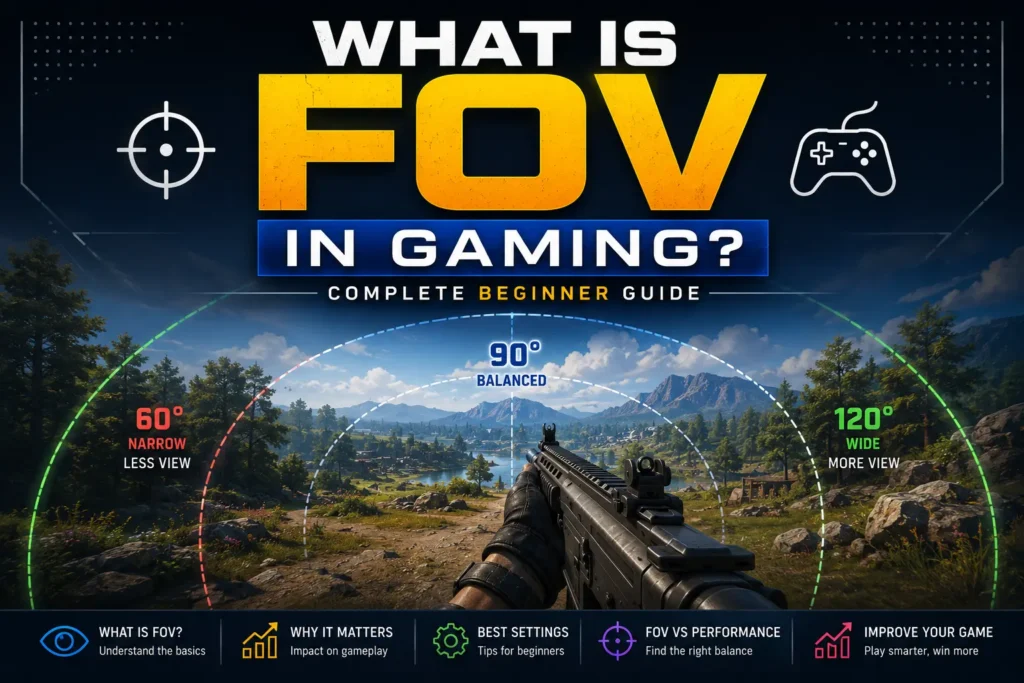
Everything you need to know about field of view — what it means, horizontal vs vertical, how aspect ratio changes everything, and how to find your perfect setting.
8 mins read
What does FOV mean in FPS games?
FOV stands for Field of View — the extent of the observable game world visible on your screen at any given moment. Think of it this way: your character has virtual eyes. Just like human vision has a natural peripheral range, your game camera has a defined angular range. That’s your FOV.
FOV is measured in degrees. A 90° FOV means the camera captures a 90-degree arc of the game world. Most competitive FPS games allow values from 60° to 120°, with some pushing higher. Higher FOV shows more of the world — lower FOV zooms in, narrowing your visible range.
The right FOV setting can genuinely impact your performance. It affects how many enemies you can spot at once, how targets appear at different ranges, and even how comfortable the game feels over a long session.
Horizontal vs vertical FOV
When someone says their FOV is “90,” they usually mean 90° horizontal — the width of what they can see side to side. There’s a second measurement: vertical FOV, which describes the range top to bottom. These two values are mathematically connected through your monitor’s aspect ratio — you can’t change one without affecting the other.
The aspect ratio connection
Your monitor’s aspect ratio is the proportional relationship between its width and height. The most common ratios in gaming:
- 4:3 — Older standard; still used by CS2 players for competitive reasons
- 16:9 — The modern widescreen standard; used by most players today
- 16:10 — Slightly taller; common on premium monitors and MacBooks
- 21:9 — Ultrawide; large horizontal FOV expansion
When you switch from 4:3 to 16:9, horizontal FOV increases significantly while vertical FOV stays the same — in most engines. This is why FOV conversion matters: 90° FOV on 4:3 is NOT the same experience as 90° FOV on 16:9.
The math behind conversion
The conversion formula uses arctangent:
Vertical FOV = 2 × arctan( tan(Horizontal FOV ÷ 2) ÷ Aspect Ratio )This is exactly what our FOV calculator uses — it takes your source FOV and aspect ratio, derives the vertical FOV (which stays constant), then recalculates horizontal FOV for your target ratio.
Why FOV matters for competitive play
Situational awareness
A wider FOV lets you see more enemies simultaneously. In Apex Legends or Warzone, spotting a flanking enemy a split second earlier can be the difference between winning and losing the fight. Players who prioritize awareness tend to run higher FOV.
Target perception and aiming
The tradeoff: the wider your FOV, the smaller enemies appear on screen. At 120° FOV, a player at medium range appears noticeably smaller than at 90°. This makes precision aiming harder at range — which is why tactical shooters like CS2 and Valorant see many pros use moderate FOV settings.
Monitor size and seating distance
Your ideal FOV depends on your physical setup too. Players sitting close to a large monitor benefit from lower FOV for comfort. Players on smaller screens or sitting further away often need higher FOV to get enough visual information. General rule: larger monitor and closer seating = lower ideal FOV.
Common FOV mistakes
Mistake 1 — Maxing out without testing
Many players assume “higher is always better” and crank FOV to maximum. While high FOV does increase awareness, it can cause motion sickness, screen distortion at edges, and difficulty tracking fast-moving targets. Always test a new FOV for at least a full gaming session before committing.
Mistake 2 — Not recalculating after changing resolution
If you change your in-game resolution or aspect ratio — especially switching between 4:3 and 16:9 — your FOV experience changes even if the slider stays the same. This is a common issue for CS2 players switching setups. Use our FOV conversion tool to find the equivalent value.
Mistake 3 — Confusing horizontal and vertical settings
Different games use different reference axes. Valorant uses vertical FOV natively — its default is locked at 70.53° vertical, which equals approximately 103° horizontal on 16:9. When you see “best Valorant FOV: 103,” that’s actually the horizontal equivalent. Our calculator handles these conversions automatically.
Beginner FOV settings by game
Here’s where to start on each major game. All values are for 16:9 monitors.
| Game | Starting FOV | Axis | Notes |
|---|---|---|---|
| Counter-Strike 2 | 90° | Horizontal | Default on 4:3; scales to ~106° on 16:9 |
| Valorant | 103° (fixed) | Vertical locked | Engine-locked, well-balanced for all levels |
| Apex Legends | 100° | Horizontal | Good balance of awareness and aim |
| Warzone | 105° | Horizontal | BR maps benefit from wider FOV |
| Fortnite | 90° | Horizontal | Start at 90°, increase toward cap (100°) if needed |
| Overwatch 2 | 95° | Horizontal | Higher FOV helps track fast heroes and team fights |
| Rainbow Six Siege | 80° | Horizontal | Tight indoor maps favour lower FOV; max is 90° |
| PUBG | 95° | Horizontal | Open maps reward wider FOV for spotting at distance |
Test any FOV change across multiple sessions. Your brain adapts over time — what feels wrong on day one may feel natural by day three.
How to use the FOV calculator
- Enter your current FOV — type the value from your in-game settings.
- Select H or V — choose whether your game uses horizontal or vertical FOV.
- Set your source aspect ratio — your current monitor ratio.
- Set your target aspect ratio — the ratio you’re converting to.
- Read the result — converted FOV, H-FOV, and V-FOV appear instantly as you type.
- Apply in-game — copy the converted value and enter it in your settings.
Final thoughts
FOV is one of the highest-impact yet most overlooked settings in competitive FPS. Taking 15 minutes to dial it in — and understanding the math behind it — can improve both your performance and comfort in-game.
Start with the values in the table above, run some deathmatch or aim-trainer sessions, and fine-tune from there in 5° increments. Use our FOV calculator whenever you change monitors, resolution, or game to keep your experience consistent.
– RELATED TOOL
– RELATED GUIDES