
Aspect Ratio FOV Calculator — Convert FOV Between 16:9, 21:9 & Any Monitor
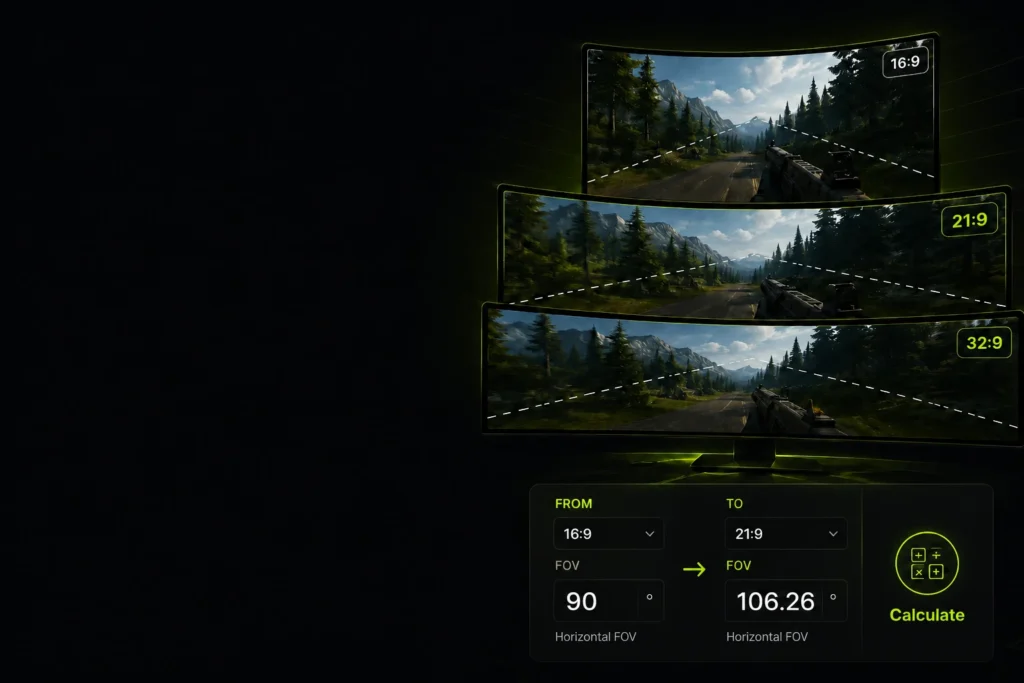
Convert your Field of View between any aspect ratios — 16:9, 21:9, 32:9, and beyond — while keeping the exact same visual perspective. Perfect for ultrawide upgrades, monitor changes, and multi-game setups.
Supports all common aspect ratios
Instant FOV conversion
Accurate mathematical calculations
Works for any game
– CALCULATOR
Calculate Your New FOV
– EDUCATIONAL
What Is an Aspect Ratio FOV Calculator?
An aspect ratio FOV calculator converts your Field of View setting from one screen shape to another, ensuring you see the same portion of the game world regardless of your monitor.
Your monitor’s aspect ratio is the mathematical relationship between its width and height — 16:9 means the screen is 16 units wide for every 9 units tall. Field of View is the angle of the virtual world your game renders on that screen. When your aspect ratio changes, the amount of the game world visible on screen shifts — and your FOV setting must change too to maintain a consistent perspective.
Why this matters: A 90° horizontal FOV on a 16:9 monitor does not feel like 90° on a 21:9 ultrawide. The wider screen captures more of the scene — so to preserve the same vertical perspective and avoid that “zoomed in” feel, your FOV value must be recalculated.
Why this matters:
A 90° horizontal FOV on a 16:9 monitor does not feel like 90° on a 21:9 ultrawide. The wider screen captures more of the scene — so to preserve the same vertical perspective and avoid that “zoomed in” feel, your FOV value must be recalculated.
Most gamers upgrading from a standard 16:9 monitor to a 21:9 ultrawide or 32:9 super ultrawide need this conversion to avoid distortion, motion sickness, or losing the aiming consistency they’ve built up over hundreds of hours.
The difference between resolution and aspect ratio is also important to understand. Resolution (like 1920×1080 or 3440×1440) describes pixel count — the sharpness of the image. Aspect ratio describes the screen’s shape. Two monitors can share the same resolution but have different aspect ratios, or share the same aspect ratio at different resolutions. FOV conversion is driven purely by aspect ratio, not by pixel density.
– Use Cases
Why Gamers Use This Calculator
From monitor upgrades to competitive consistency, here’s when you need an FOV conversion.
Upgrading to Ultrawide
Moving from 16:9 to 21:9 is one of the most common monitor upgrades. Without recalculating your FOV, the game world will look stretched or your vertical view will shift unexpectedly.
Competitive Consistency
Muscle memory is built around a specific visual field. If your crosshair placement, enemy sizing, and peripheral cues change after a monitor switch, so does your aim. Conversion keeps your setup feeling identical.
Multi-Monitor Setups
Playing on different machines — a home rig and a LAN setup, or a desktop and a laptop — often means different aspect ratios. This calculator lets you match your visual experience across all of them.
Streaming & Content Creation
Streamers playing on 21:9 monitors often output at 16:9. Understanding your true FOV helps you frame gameplay correctly and avoid black bars or unexpected cropping in your stream.
Cross-Game Optimization
Different games use different FOV scales — some report horizontal FOV, others vertical. This calculator handles both, so you can carry your preferred perspective between any title.
Resolution Changes
If a game forces a specific resolution that changes your effective aspect ratio, your FOV will be off even if you didn’t touch the settings. Convert to avoid a distorted or tunnel-vision experience.
– Guide
How to Use the Aspect Ratio FOV Calculator
Six steps to convert your FOV in under 30 seconds.
01
Enter your current FOV
Type the FOV value you’re currently using in your game. This is usually found in the game’s video or gameplay settings — common values are 90°, 100°, or 103° for competitive shooters.
02
Choose your original aspect ratio
Select the aspect ratio of the monitor you’re converting from. If you’re on a standard 1080p or 1440p monitor, this is almost certainly 16:9. Check your monitor specs if unsure.
03
Select your target aspect ratio
Choose the aspect ratio you’re converting to. Upgrading to an ultrawide? Select 21:9. Super ultrawide or Samsung Odyssey G9? Select 32:9. Have an unusual monitor? Use Custom and enter your exact ratio.
04
Choose Horizontal or Vertical FOV
Check your game’s settings to determine whether it reports Horizontal or Vertical FOV. Most modern games (CS2, Valorant, Apex Legends) use horizontal. Some older titles and console ports default to vertical.
05
Press Calculate
Click the Calculate button. Your converted FOV will appear instantly with a plain-English summary of what the conversion means for your visual field.
06
Apply the value in-game
Open your game’s video or gameplay settings and enter the converted FOV value. Save and restart if prompted. Your perspective should now feel identical to your original setup despite the different aspect ratio.
– Reference
Common Gaming Aspect Ratios
A quick reference for the most common monitor aspect ratios in gaming today.
| Aspect Ratio |
Common Resolutions | Typical Use Case |
|---|---|---|
| 4:3 | 1024×768, 1280×960, 1600×1200 |
Legacy monitors and competitive CS players who stretch for wider hit-boxes. Still actively used in tournaments. |
| 5:4 | 1280×1024 | Older square monitors. Almost entirely replaced by 16:9, but still found in older office setups and some LAN cafes. |
| 16:10 | 1920×1200, 2560×1600 | Professional and creative monitors with slightly more vertical real estate than 16:9. Gaining traction in premium laptops. |
| 16:9 | 1920×1080, 2560×1440, 3840×2160 |
The global standard. Every game supports 16:9. The baseline for all FOV comparisons and what most players start from. |
| 21:9 | 2560×1080, 3440×1440, 5120×2160 |
Ultrawide. Provides ~33% more horizontal game world compared to 16:9. Preferred for immersive single-player and MMOs. Growing in FPS use. |
| 32:9 | 3840×1080, 5120×1440 | Super ultrawide. Roughly equivalent to two 16:9 monitors side by side without a bezel. Extremely immersive for sim racing, strategy, and flight games. |
– The math
How the FOV Conversion Works
FOV conversion is not a simple percentage change. Here’s the actual formula — and what every part of it means.
When you change your aspect ratio, the relationship between what you see horizontally and vertically shifts. FOV is measured in degrees, but the way degrees map to screen space is non-linear — it follows trigonometry, not simple multiplication. That’s why you can’t just scale your FOV proportionally.
Horizontal FOV Conversion Formula
New FOV = 2 × arctan(
(New Aspect Ratio ÷ Old Aspect Ratio) × tan(Old FOV ÷ 2)
Old FOV
Your current FOV in degrees (e.g. 90°)
Old AR
Your original aspect ratio as a decimal (16:9 = 1.7778)
New AR
Your target aspect ratio as a decimal (21:9 = 2.3333)
arctan
Inverse tangent — converts a ratio back into an angle
tan
Tangent — converts an angle into a ratio
In plain English: the formula converts your FOV angle into a ratio (using tangent), scales that ratio by how much wider or narrower the new screen is, then converts it back into an angle (using arctangent). This accounts for the non-linear way angles work in 3D projection.
For Vertical FOV conversion, the same formula applies — but because vertical FOV doesn’t change with aspect ratio in most games (games scale horizontally), you can often use it directly without conversion. This calculator handles both cases accurately.
⚠ Disclaimer:
Calculations assume standard trigonometric FOV projection. Some games implement FOV scaling differently (e.g. Vert- vs Hor+ scaling). Results may vary slightly between titles. Always test in-game after applying a converted value.
– Real-World Examples
FOV Conversion in Practice
See exactly what changes when you switch between common aspect ratios
Example 1 — Ultrawide Upgrade
90°
16:9
106°
21:9
Moving to 21:9 gives you roughly 33% more horizontal screen real estate. To maintain the same vertical perspective, your horizontal FOV increases from 90° to ~106°. Your vertical sight lines stay identical — you simply gain peripheral vision on both sides.
Example 2 — Super Ultrawide
90°
16:9
120°
32:9
A 32:9 super ultrawide doubles the horizontal space compared to 16:9. Your 90° FOV on a standard monitor becomes approximately 120° — a dramatic expansion of peripheral vision. This can feel disorienting in fast-paced FPS games but is ideal for racing sims and strategy titles.
Example 3 — Reverse Conversion
160°
21:9
90°
16:9
Going back from ultrawide to standard 16:9? Your 106° FOV on a 21:9 monitor converts to exactly 90° on 16:9 — confirming the calculation is fully reversible. Useful when playing at a LAN event on a standard monitor after practicing on an ultrawide at home.
– Education
Aspect Ratio vs. Resolution — What’s the Difference?
These two terms are constantly confused. Here’s the clear distinction.
Aspect Ratio = Screen Shape
The ratio of width to height. Determines how wide or tall your screen looks. 16:9, 21:9, and 32:9 are all descriptions of shape, not sharpness.
Resolution = Pixel Count
The number of pixels packed into that shape. 1920×1080 and 3840×2160 are both 16:9 — one is 1080p, the other is 4K. Resolution affects clarity, not FOV.
| Resolution | Aspect Ratio | Common Name |
|---|---|---|
| 1920×1080 | 16:9 | 1080p Full HD |
| 2560×1440 | 16:9 | 1440p QHD |
| 3840×2160 | 16:9 | 4K UHD |
| 2560×1080 | 21:9 | Ultrawide 1080p |
| 3440×1440 | 21:9 | Ultrawide 1440p |
| 5120×1440 | 32:9 | Super Ultrawide 1440p |
The key takeaway: changing resolution alone does not require an FOV conversion. Going from 1080p to 1440p on the same 16:9 monitor? Your FOV stays the same. Switching from a 1440p 16:9 to a 1440p 21:9? Your FOV needs to change — because the shape changed, not the sharpness.
– FAQ
Common Questions About Aspect Ratio & FOV
Aspect ratio is the proportional relationship between your monitor’s width and height. In gaming, it determines how much of the game world appears on screen horizontally versus vertically. The most common gaming aspect ratio is 16:9 (standard widescreen), followed by 21:9 (ultrawide) and 32:9 (super ultrawide).
Yes — when you change your aspect ratio, the same FOV value produces a different visual result. A wider aspect ratio means more horizontal screen space, so the same FOV number will show less vertical content relative to your original setup. This calculator accounts for that shift and gives you the exact FOV to enter to maintain your preferred perspective.
It depends on the game. For immersive single-player RPGs, racing simulators, and open-world games, ultrawide (21:9) provides a more cinematic, peripheral-rich experience. For competitive FPS, it can give a minor situational awareness advantage — though some games limit ultrawide FOV in ranked modes to prevent unfair advantages. Always check your game’s ultrawide support before purchasing.
Not necessarily. The point of this calculator is to find the FOV that maintains the same vertical field of view you had on your previous monitor. If you were comfortable at 90° on 16:9, the equivalent on 21:9 is approximately 106°. You don’t need to increase your FOV beyond that unless you actually want a wider view — some players do, but it can cause fish-eye distortion at high values.
This happens when your FOV value doesn’t match your new aspect ratio. If you moved to a wider monitor but kept the same FOV number, the game is rendering the same horizontal angle into a wider space, which compresses the vertical view and makes everything look zoomed in. Run your old and new aspect ratios through this calculator to get the correct value.
No. While most modern PC games support 21:9, not all do — and some that technically support it cap the FOV or add black bars. 32:9 support is even more limited. Check sites like WSGF (Widescreen Gaming Forum) for game-specific ultrawide compatibility reports before upgrading your monitor.
This calculator uses the standard trigonometric FOV conversion formula that applies to most first-person and third-person games. Some engines implement FOV differently — for example, some scale vertically (Vert-) while others scale horizontally (Hor+). Always test the output in-game and make minor adjustments if needed. The disclaimer in the math section covers this in more detail.
Horizontal FOV is the angle of the game world visible from the left edge to the right edge of your screen. Vertical FOV is the angle from the top edge to the bottom. Most games report horizontal FOV — changing aspect ratio affects horizontal FOV directly. Vertical FOV stays consistent in Hor+ scaling games (the most common type), which is why it’s used as the reference point for accurate conversion.
– RELATED TOOL