
Horizontal vs Vertical FOV: Explained (With Conversion Calculator)
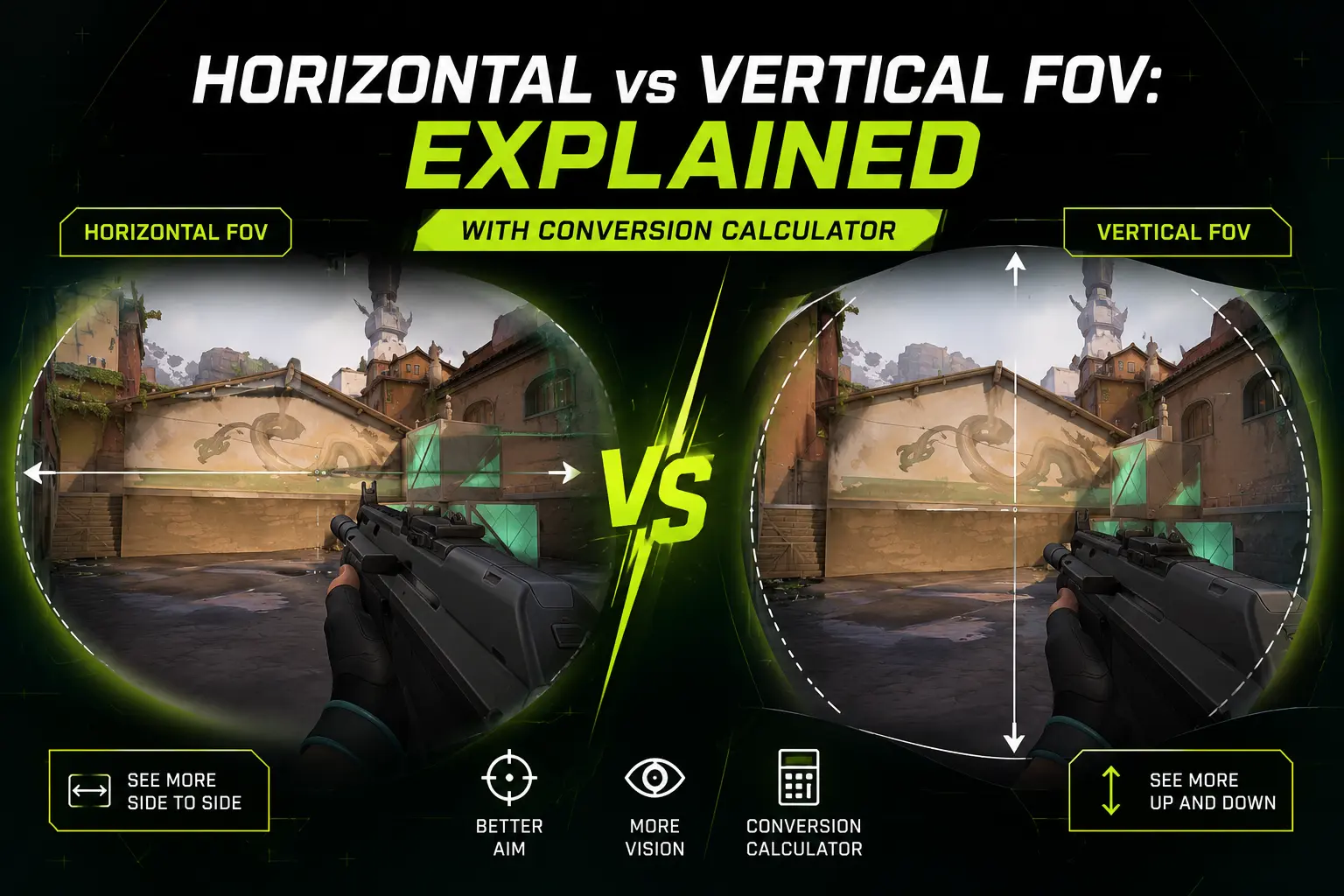
You set your FOV to 100 in one game, jump into another, set it to 100 again — and somehow the second game feels like you’re peering through a cardboard tube. Nothing changed except the number you typed in, yet your peripheral vision shrank, your aim sensitivity feels different, and the whole scene looks “zoomed in.” You didn’t do anything wrong. You just ran into one of the most misunderstood settings in PC and console gaming: the difference between horizontal FOV and vertical FOV.
Some games — most modern shooters built on Source, id Tech, or Unreal Engine — measure Field of View horizontally, across the left-right width of your screen. Others, especially many console titles and Unity-based games, measure it vertically, across the top-bottom height. The two systems aren’t interchangeable, and treating a horizontal FOV value as if it were vertical (or vice versa) is the single biggest reason your settings never feel consistent between games.
This guide breaks down exactly what horizontal and vertical FOV mean, why aspect ratio makes the gap even bigger, and how to convert between them with simple math — or with our interactive FOV conversion calculator, so you never have to guess again.
10 mins read
What Is Field of View (FOV)?
Field of View is the extent of the visible game world you can see on screen at any given moment, measured in degrees. Think of your character’s eyes as a camera lens: a narrow lens sees a small, zoomed-in slice of the world, while a wide lens captures more of the scene at once, including more peripheral detail on the sides.
FOV matters for a few practical reasons:
- Peripheral vision — A wider FOV lets you spot enemies, vehicles, or hazards approaching from the edges of the screen before they’re directly in front of you.
- Immersion — A FOV that’s too narrow can feel claustrophobic, like looking through binoculars; one that’s too wide can feel like a fish-eye lens, distorting edges and stretching geometry.
- Competitive awareness — In fast-paced shooters, a few extra degrees of FOV can mean noticing a flanker a half-second sooner — often the difference between winning and losing a fight.
- Comfort — Some players experience motion sickness at low FOV because the disconnect between their real peripheral vision and what’s on screen feels unnatural.
A beginner-friendly way to picture it: imagine standing in a hallway. A 60° FOV is like looking through a paper towel tube — you see straight ahead and not much else. A 110° FOV is like taking the tube away entirely — you can see most of the hallway, including parts of the walls on either side.
The catch is that “FOV” isn’t measured the same way in every game, and that’s where horizontal and vertical FOV come in.
Horizontal FOV Explained
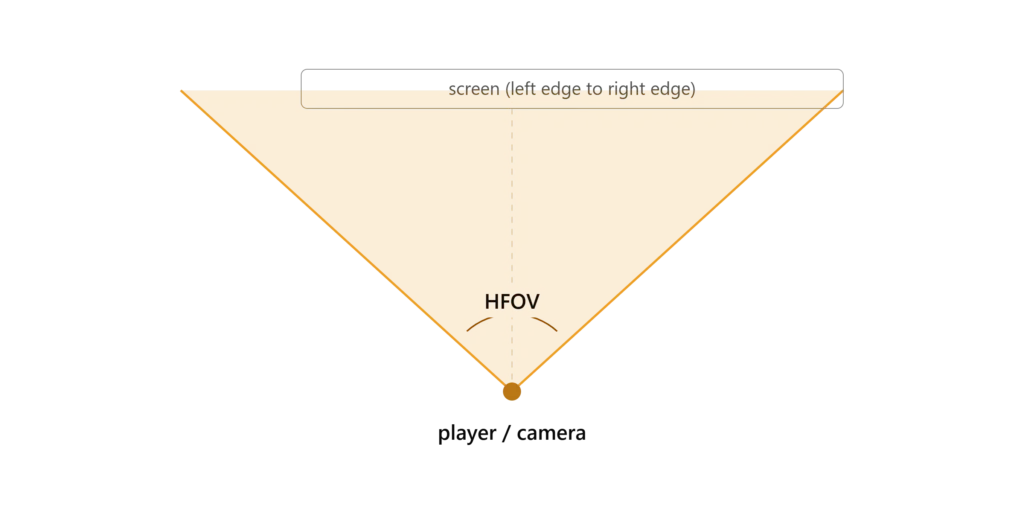
Horizontal FOV (HFOV) measures the viewing angle from the left edge of the screen to the right edge. It’s the most intuitive way most players think about FOV, because widescreen monitors are wider than they are tall, and “seeing more” usually means seeing more to the sides.
Games that commonly use horizontal FOV include most competitive PC shooters built on the Source engine (Counter-Strike 2), id Tech (DOOM, Quake), and many Unreal Engine titles configured for horizontal measurement, such as Fortnite and PUBG.
Advantages
- Directly controls how much you see to your left and right, which is what most players actually care about.
- Scales naturally with ultrawide monitors — a 21:9 or 32:9 display genuinely shows you more horizontal world space at the same HFOV value.
- More intuitive for comparing “how wide can I see” between setups.
Disadvantages
- Because it’s tied to aspect ratio, the same horizontal FOV number can produce a different vertical FOV — and a different overall feel — depending on your screen’s width-to-height ratio.
- Pushing horizontal FOV very high on a standard 16:9 screen can introduce noticeable distortion at the edges.
Vertical FOV Explained
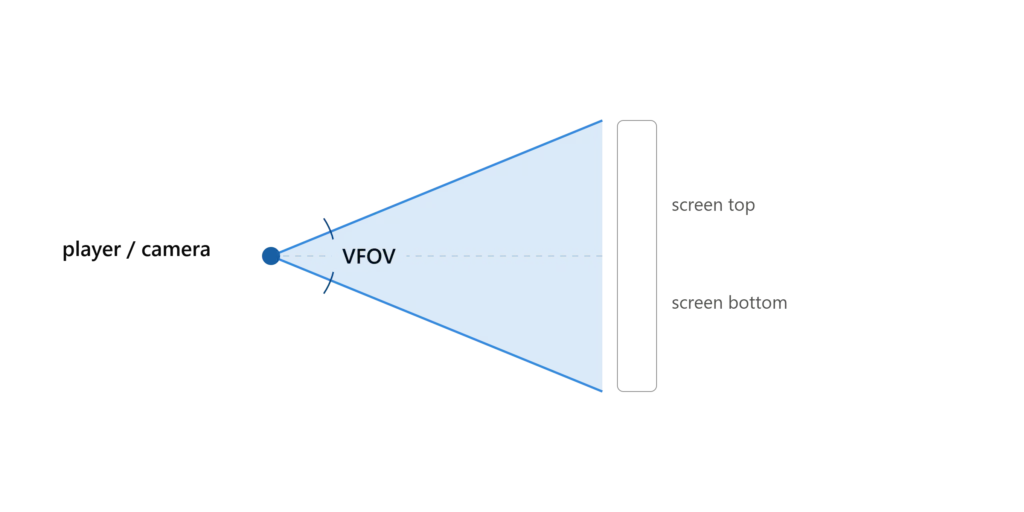
Vertical FOV (VFOV) measures the viewing angle from the top of the screen to the bottom. This approach is common in many console games and engines that default to “Vert-” scaling (more on that term below), including a large number of Unity-built titles and several console shooters.
Why some engines use vertical FOV: Console development historically targeted a fixed, predictable vertical slice of the screen regardless of which TV aspect ratio a player used, so locking the vertical angle kept the UI and core visible area consistent. Some engines also simply default to vertical FOV in their camera component and leave horizontal scaling to whatever aspect ratio the player happens to be running.
Advantages
- Keeps the top-to-bottom view consistent regardless of aspect ratio, which can feel more predictable for vertical aiming and platforming.
- Less prone to extreme edge distortion on ultrawide setups, since the horizontal expansion is handled separately.
Disadvantages
- On a 16:9 monitor, a vertical FOV of say 70° produces a much narrower-feeling view than a horizontal FOV of 70°, because the screen is naturally wider than it is tall.
- Less intuitive for players used to thinking about “side-to-side” visibility.
- Ultrawide players often see no extra peripheral vision unless the game explicitly adds horizontal field with aspect ratio (a system called “Hor+,” explained later).
This is exactly why two games set to “the same” FOV number can feel completely different. A horizontal FOV of 90° on a 16:9 screen converts to roughly 58.7° of vertical FOV. If you then go into a second game that uses vertical FOV and set it to 90°, you’re actually getting a horizontal FOV of nearly 130° — a dramatically wider, more fish-eye view than the first game. Same number, two completely different experiences.
Horizontal vs Vertical FOV: Comparison Table
Why Aspect Ratio Changes Everything
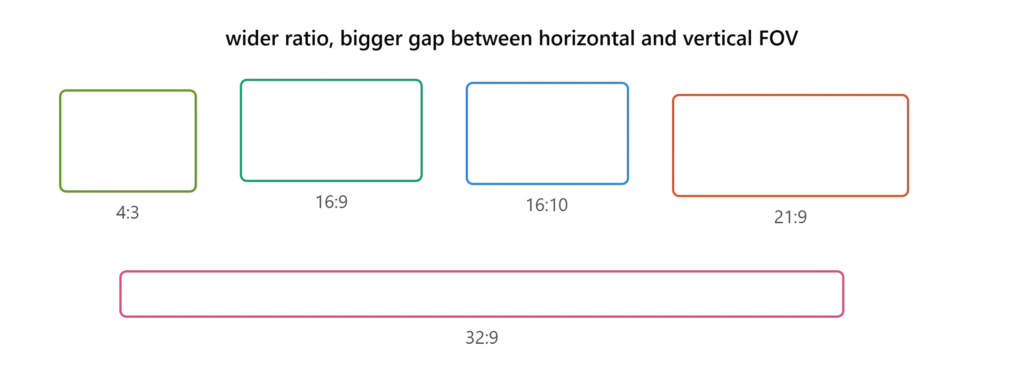
Aspect ratio describes the proportional relationship between a screen’s width and height. It’s the hidden variable that makes FOV conversion necessary in the first place.
4:3
Old-style square-ish monitors. Width and height are close together, so horizontal and vertical FOV are relatively close in value.
16:9
The current PC and console standard. Noticeably wider than tall, which is why horizontal FOV ends up significantly larger than vertical FOV at the same viewing angle.
16:10
Slightly taller than 16:9, common on some productivity and gaming monitors, with a smaller horizontal/vertical gap than 16:9.
21:9
Ultrawide. The horizontal field expands considerably compared to 16:9 while the vertical field can stay nearly identical, which is why ultrawide monitors feel so much more immersive in Hor+ games.
32:9
Super ultrawide, effectively two 16:9 screens side by side. The horizontal FOV gap compared to vertical becomes enormous.
The simple rule: as a screen gets wider relative to its height, horizontal FOV grows while vertical FOV can stay constant — but only in games using “Hor+” scaling. In “Vert-” games, the vertical FOV stays fixed and the horizontal field is cropped instead, which is why some players on ultrawide monitors complain that certain games don’t actually show them more of the world.
Horizontal to Vertical FOV Formula
The math behind FOV conversion isn’t scary — it’s one trigonometry formula applied to your screen’s aspect ratio.
VFOV = 2 × arctan( tan(HFOV / 2) / aspectRatio )
Where:
- VFOV = vertical field of view, in degrees
- HFOV = horizontal field of view, in degrees
- aspectRatio = screen width ÷ screen height (for 16:9, that’s 1.778)
- arctan and tan = standard trigonometric functions, calculated in degrees (most calculators need this set to “degree mode,” not “radian mode”)
Worked example: Convert a 100° horizontal FOV to vertical FOV on a 16:9 monitor.
- Aspect ratio = 16 ÷ 9 = 1.778
- tan(100° ÷ 2) = tan(50°) ≈ 1.19175
- Divide by aspect ratio: 1.19175 ÷ 1.778 ≈ 0.6702
- arctan(0.6702) ≈ 33.85°
- Multiply by 2: VFOV ≈ 67.7°
So a 100° horizontal FOV on a standard 16:9 monitor is roughly 67.7° vertical FOV. That’s the number you’d want to enter if you’re matching the feel of that view in a game that uses vertical FOV measurement.
Vertical to Horizontal Formula
The reverse conversion uses the same formula rearranged:
HFOV = 2 × arctan( tan(VFOV / 2) × aspectRatio )
Worked example: Convert a 70° vertical FOV to horizontal FOV on a 16:9 monitor.
- Aspect ratio = 1.778
- tan(70° ÷ 2) = tan(35°) ≈ 0.7002
- Multiply by aspect ratio: 0.7002 × 1.778 ≈ 1.2449
- arctan(1.2449) ≈ 51.21°
- Multiply by 2: HFOV ≈ 102.4°
A 70° vertical FOV on 16:9 is roughly equivalent to a 102.4° horizontal FOV — which is why a “70 FOV” console default can actually feel reasonably wide once you understand which axis it’s measuring.
Why use a calculator instead of doing this by hand: Beyond the obvious convenience, manual trig conversion is easy to get wrong if your calculator is set to radians instead of degrees, if you mix up which value goes where in the formula, or if you forget that aspect ratio itself changes between monitors, multi-monitor setups, and ultrawide displays. A calculator removes all of that risk and gives you an answer in seconds.
Interactive FOV Conversion Calculator
FOV Conversion Calculator
Rather than running the trigonometry yourself every time you switch games, use our free FOV Conversion Calculator.
How it works:
- Choose your conversion direction — Horizontal to Vertical, or Vertical to Horizontal.
- Enter your current FOV value — the number from the game you’re converting from.
- Select your aspect ratio — 16:9, 16:10, 21:9, 32:9, or 4:3, matching your monitor or TV.
- Get an instant result — the calculator applies the formula above and shows your converted FOV immediately, so you can plug it directly into your new game’s settings.
This is a demo preview — to switch between game presets and convert your FOV for the game you’re actually playing,
Popular FOV Conversion Examples (16:9)
The table below shows approximate horizontal-to-vertical conversions for common FOV values on a standard 16:9 display. Use it as a quick reference, or get an exact figure with the calculator for any aspect ratio.
Note: values are approximate and rounded for quick reference; small variances can occur depending on a game’s exact rendering implementation. For precise figures, always use the calculator.
Why Different Games Use Different FOV Systems
Unreal Engine
Defaults to horizontal FOV in most first-person camera setups, though developers can configure it either way, which is why Unreal-based games vary.
Unity
The built-in Camera component’s Field of View property is vertical by default, which is a major reason so many Unity games measure FOV vertically unless the developer manually overrides it.
id Tech
Historically horizontal-FOV focused, dating back to early Doom and Quake engines, carried forward into modern id Tech titles.
Source Engine
Uses horizontal FOV, and famously applies Hor+ scaling, meaning widescreen and ultrawide players automatically gain extra horizontal field of view without needing to change anything.
Custom Engines
Vary by studio; some console-focused custom engines default to vertical FOV to keep UI and HUD elements consistent across different TV aspect ratios.
Developers generally choose the system that best fits their primary platform and visual design goals: PC-and-ultrawide-focused titles tend to favor horizontal FOV with Hor+ scaling, while console-first or UI-heavy titles often favor vertical FOV with Vert- scaling to keep things predictable.
Common FOV Mistakes
- Confusing horizontal and vertical FOV — Assuming every game measures FOV the same way is the single most common error. Always check the game’s settings menu or community wiki to confirm which one you’re adjusting.
- Copying FOV settings directly between games — Typing in the same number from your last game without converting it almost always produces a mismatched view.
- Ignoring aspect ratio — Forgetting that your monitor’s aspect ratio changes the conversion entirely; a value correct for 16:9 is wrong for 21:9 or 32:9.
- Using incorrect or outdated calculators — Some online tools use rounded or oversimplified formulas; double-check against the standard trigonometric formula above.
- Assuming all games use the same measurement system — Even games on the same engine can configure FOV differently depending on developer choices, so don’t assume based on engine alone.
Best FOV Recommendations
Does Higher FOV Improve Gameplay?
Advantages
- Wider peripheral awareness, helping you spot movement at the edges of your screen sooner.
- Better situational awareness in fast-paced, multi-directional combat.
- Can reduce motion sickness for some players by more closely matching natural human peripheral vision.
Disadvantages
- Fish-eye distortion — Pushing FOV very high stretches objects near the edges of the screen, especially noticeable on weapons and character models.
- Reduced target visibility at range — Enemies appear smaller at higher FOV since more of the world is compressed into the same screen space, which can make precise long-range aiming slightly harder.
- Performance cost — Rendering a wider field of view means the engine draws more geometry per frame, which can mean a small FPS hit on lower-end hardware.
- Motion sickness for some players — Counterintuitively, very high FOV combined with fast movement can increase discomfort for players sensitive to vection (the visual sensation of self-motion).
There’s no single “best” FOV for everyone — it’s a tradeoff between awareness, comfort, and visual clarity that depends on genre, hardware, and personal sensitivity.
Conclusion
The reason your FOV settings never feel quite right when you move between games almost always comes down to one overlooked detail: whether that game measures Field of View horizontally or vertically. Add aspect ratio into the mix — 16:9, 21:9, 32:9, and beyond — and a single number can mean wildly different things from one title to the next.
Once you understand the difference, the fix is simple: stop copying raw FOV numbers between games, and instead convert them properly using the formulas above or the calculator on this page. Before you carry your favorite FOV setting into a new game, run it through the converter first — your aim, your awareness, and your comfort will thank you.
Ready to get it exactly right? Head to the FOV Conversion Calculator and set every game you play to a FOV that actually matches what you’re used to.
– FAQ
Common questions about horizontal and vertical FOV.
Horizontal FOV is the field of view measured from the left edge of your screen to the right edge, describing how much you can see side to side.
Vertical FOV is the field of view measured from the top edge of your screen to the bottom edge, describing how much you can see up and down.
Different game engines default to different measurement systems — some measure horizontally, others vertically — and developers also choose values based on genre, platform, and design intent.
Use the formula VFOV = 2 × arctan(tan(HFOV/2) / aspect ratio), or simply enter your value into the FOV conversion calculator.
Use the formula HFOV = 2 × arctan(tan(VFOV/2) × aspect ratio), or use the calculator for an instant result.
Neither is inherently “better” — they’re just different measurement systems. What matters is understanding which one your game uses so you can set it correctly.
No. On a standard 16:9 monitor, 90° horizontal FOV is significantly wider than 90° vertical FOV, since vertical FOV is measured across the shorter dimension of the screen.
Most likely because the two games measure FOV differently (horizontal vs vertical), or because they apply different aspect ratio scaling (Hor+ vs Vert-).
Yes. Wider aspect ratios like 21:9 and 32:9 increase the gap between horizontal and vertical FOV values, and directly affect how much extra world space you see.
Most competitive PC FPS titles, including those built on Source and id Tech, use horizontal FOV.
Hor+ (“horizontal plus”) scaling keeps vertical FOV fixed and expands horizontal FOV automatically as your aspect ratio gets wider, meaning ultrawide monitors show genuinely more world.
Vert- (“vertical minus”) scaling keeps horizontal FOV fixed and reduces vertical FOV as the aspect ratio shrinks, which is less common but can crop vertical visibility on taller displays.
On Hor+ games, yes — ultrawide monitors show more horizontal world space at the same FOV setting. On Vert- games, ultrawide may not add extra peripheral content and can sometimes crop the view instead.
Not reliably. Because games measure FOV differently and apply different aspect ratio scaling, the same number can produce very different views — always convert rather than copy.
A horizontal FOV around 90°–100° (or the converted vertical equivalent) is a comfortable, widely recommended starting point that balances awareness and visual clarity without heavy distortion.
– RELATED TOOL
– RELATED GUIDES