CS2 4:3 FOV: What Actually Changes When You Stretch
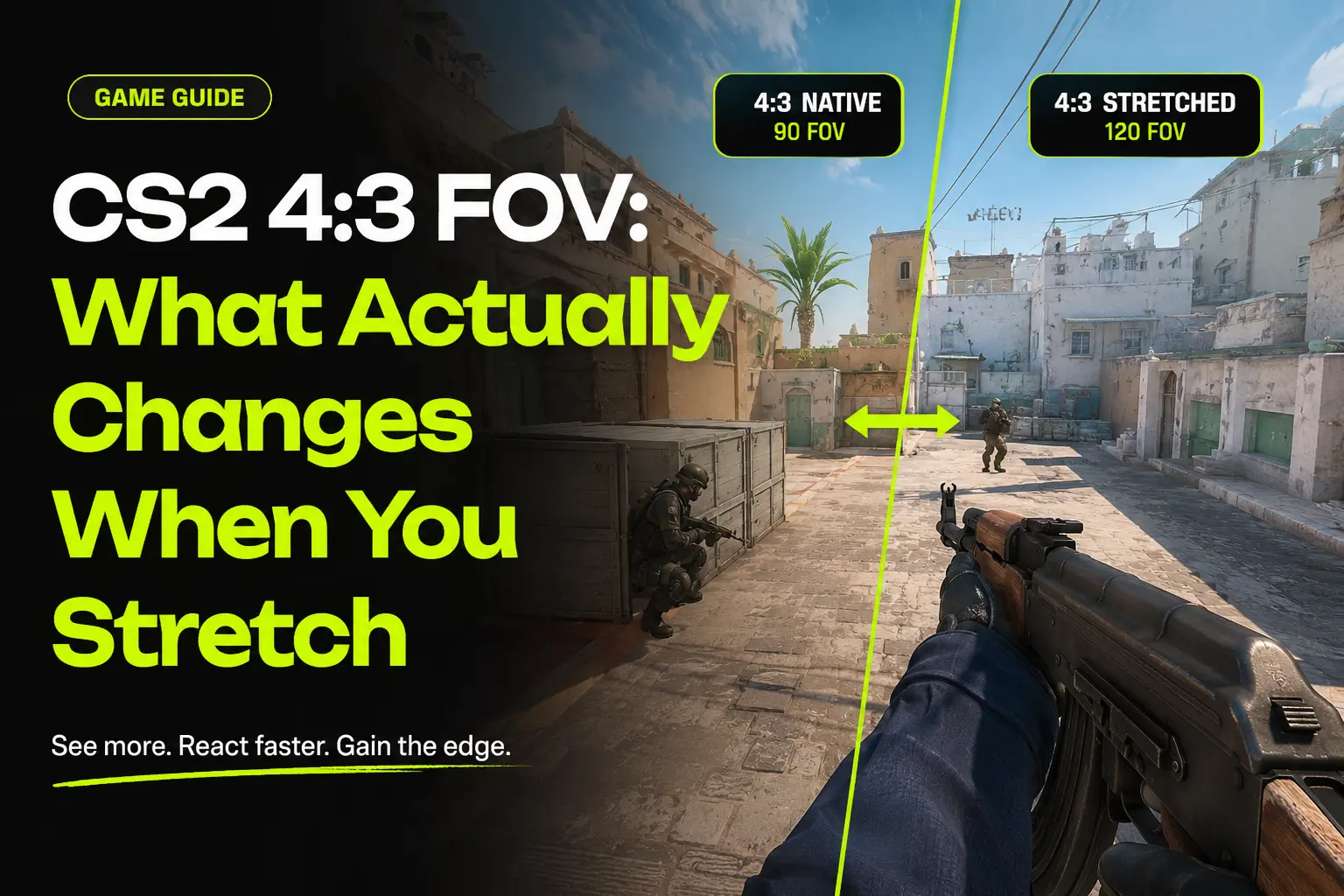
If you’ve spent any time watching CS2 pro streams, you’ve probably noticed a chunk of the scene is still playing on 4:3, sometimes stretched to fill a 16:9 monitor. If you’ve tried it yourself, you’ve probably also noticed something confusing: your FOV setting hasn’t changed, but the game looks different — enemies feel wider, the world feels tighter, and something about your aim feels off in a way you can’t quite explain.
This post isn’t a general “what is FOV” primer — if you want that, read our full horizontal vs vertical FOV guide first. This is specifically for CS2 players running or considering 4:3 stretched, who want to understand what’s actually happening to their field of view when they do.
9 mins read
How CS2 Handles FOV (The Short Version)
CS2 doesn’t give you a slider to change your actual world/camera FOV in competitive matches — that value is locked by design to keep the playing field level. What you can adjust is viewmodel_fov, which only controls how your weapon and hands are positioned and sized on screen, not how much of the game world you see. The standard range for viewmodel_fov is 54 to 68, with higher values pushing the weapon model further from the camera.
This matters for the 4:3 conversation because it rules out one common assumption right away: switching to 4:3 stretched is not adjusting your camera FOV setting, because CS2 doesn’t expose that setting to you in the first place. Whatever changes when you go 4:3, it isn’t happening through an FOV slider.
What Actually Happens to FOV on 4:3 Stretched
4:3 stretched works by rendering the game internally at a narrower 4:3 resolution (common choices are 1280×960, 1440×1080, or 1024×768) and then having your GPU stretch that image horizontally to fill your native 16:9 monitor.
Here’s the part that trips people up: this process doesn’t recalculate or increase your actual field of view. You’re rendering less horizontal world space at 4:3 than you would at 16:9 — your effective FOV is narrower, not wider. What changes is that the narrower image then gets stretched wider by your graphics card to fill the same screen, which distorts everything horizontally, including player models.
So the honest technical summary is: 4:3 stretched reduces how much of the world you actually see, then artificially widens what you do see through GPU stretching. It’s a trade of raw FOV for visual distortion, not a genuine FOV increase.
Common 4:3 Stretched Resolutions in CS2
Not every 4:3 stretched resolution behaves identically. The internal render resolution you pick changes both the effective FOV you’re rendering and the performance you get in return. Here’s how the most common choices compare on a native 16:9 monitor:
Lower internal resolutions render fewer pixels, which is why they tend to produce a modest FPS increase on lower-end systems — separate from any FOV effect.
4:3 Stretched vs True 4:3 (Black Bars) — Are They the Same?
No, and this distinction matters:
4:3 Stretched
The narrower 4:3 image is stretched horizontally to fill your 16:9 screen. No black bars, but everything — player models, UI, crosshair — is distorted wider.
4:3 With Black Bars
The game renders at true 4:3 geometry with no distortion, and your monitor just displays empty black strips on the left and right instead of stretching the image.
Both modes render the same underlying 4:3 field of view. The difference is purely about what happens to that image afterward: stretch it to fill the screen, or leave black space around it. If you’ve heard that black bars and stretched give you “different FOV,” that’s not accurate — the FOV rendered is identical, only the presentation differs.
Does 4:3 Really Increase FOV, or Just Perceived Target Size?
This is the single most misunderstood part of the whole setup. Switching to 4:3 stretched does not increase your field of view — if anything, you’re seeing a narrower horizontal slice of the map than you would on native 16:9. What it does change is how wide enemy player models appear on your screen, because the stretching distorts their width without changing their actual in-game hitbox.
In other words: enemies look wider and easier to track, but their hitboxes underneath that distorted image haven’t grown. You’re not gaining a mechanical aiming advantage from bigger hitboxes — you’re gaining a visual one from a bigger-looking target that’s easier for your eyes and brain to lock onto. That’s a real, legitimate reason some players prefer it, but it’s a perception effect, not an FOV or hitbox change.
How to Set Up 4:3 Stretched in CS2
If you want to try it yourself, here’s the general setup process. Exact menu names vary slightly by driver version, but the steps are the same across NVIDIA and AMD.
- Set your monitor to run at its native resolution (e.g., 1920×1080) at the OS level first — this stays unchanged.
- Open your GPU control panel — NVIDIA Control Panel or AMD Software — and find the display scaling settings.
- Set scaling mode to “Full-screen” or “Stretched” and make sure scaling is performed by the GPU, not the display, so CS2 can render below native resolution and have it stretched correctly.
- Launch CS2 and open Video Settings.
- Set Display Mode to Fullscreen (not Windowed or Borderless — GPU stretching typically only applies in exclusive fullscreen mode).
- Choose your 4:3 resolution from the in-game resolution list — 1280×960, 1440×1080, or 1024×768 are the standard options.
- Apply and check in-game that the image fills your full screen with no black bars. If you see black bars instead, your GPU scaling mode is set to “Aspect ratio” or “Centered” rather than “Full-screen/Stretched.”
To switch back, just reverse the resolution choice in CS2’s video settings — you don’t need to change your GPU scaling mode again unless you want to stop using stretched resolutions entirely.
Should You Bother With 4:3 in CS2?
Reasons players choose it
- Enemy models appear visually wider, which many players find easier to track and flick onto.
- Lower internal render resolution can improve FPS on weaker hardware.
- Some players simply find the tighter, distortion-heavy view helps them focus with fewer distractions on the edges of the screen.
Reasons players skip it
- You’re genuinely seeing less of the map horizontally than on 16:9 — that’s a real information trade-off, not just a preference.
- The distortion takes real time to adjust to and can feel disorienting at first.
- Native 16:9 gives you a wider actual FOV, which some players value more for spotting flanks early.
There’s no universal right answer here — it’s closer to a crosshair or sensitivity choice than an objective upgrade. If you’re curious what your effective horizontal FOV actually looks like at 4:3 versus your native 16:9, run both through the calculator below rather than guessing based on how it “feels” in-game.
Common Misconceptions About CS2 4:3
A lot of misinformation circulates around stretched resolution. Here’s what’s actually true:
“4:3 stretched increases my FOV.” False. It renders a narrower field of view than 16:9 and stretches the image afterward — your actual FOV goes down, not up.
“Stretched resolution makes hitboxes bigger.” False. Only the visual model is distorted wider; the underlying hitbox geometry is untouched.
“Black bars and stretched give different FOV.” False. Both render identical 4:3 FOV; only the on-screen presentation differs.
“You can adjust world FOV directly in CS2.” False. CS2 doesn’t expose a camera FOV slider — only viewmodel_fov, which affects your weapon model, is adjustable.
“Pros use 4:3 because it’s objectively better.” False. Many pros use it for perceived target size, but plenty of top players compete on native 16:9 — it’s a preference, not a proven competitive edge.
Conclusion
4:3 stretched in CS2 doesn’t do what it’s often assumed to do — it doesn’t widen your FOV, and it doesn’t grow enemy hitboxes. What it actually does is narrow the field of view you’re rendering, then stretch that narrower image wider to fill your screen, which distorts player models in a way many players find easier to track. Whether that trade-off is worth it depends on how much you value raw FOV versus visual target size — not on which one is objectively “better.”
If you want to see the real numbers behind that trade-off instead of relying on how it feels, run your resolution through the calculator and compare.
– FAQ
Common questions about CS2 4:3 FOV.
No. It renders a narrower field of view internally and then stretches that image to fill your screen — your actual FOV is reduced, not increased, even though enemies appear wider.
No. Only the visual width of the model is distorted by the stretch. The underlying hitbox is unaffected.
Not in competitive play — CS2 doesn’t expose a camera FOV slider to players. Only viewmodel_fov, which affects your weapon model, is adjustable.
No. Both render the same 4:3 FOV, but stretched fills the screen by distorting the image wider, while black bars keep true proportions and leave empty space on the sides instead.
It’s a preference trade-off, not a guaranteed advantage — you gain perceived target size but lose actual horizontal FOV. Many pros use it, but plenty of top players also stick with native 16:9.
1280×960 is the most common choice among pros and streamers who use stretched resolution, offering a balance between visible model distortion and image clarity.
It can. Lower internal resolutions like 1024×768 render fewer pixels, which can give a modest FPS boost on weaker hardware, separate from any FOV effect.
– RELATED TOOL
– RELATED GUIDES